dodo-reach/hermes-desktop
The safest, simplest way to manage Hermes from your Mac. Pure SSH. No gateways, no exposed ports, no browser layer.
Hermes Desktop is a native macOS companion app that provides a dedicated workbench for managing Hermes Agent without relying on browser wrappers or gateway APIs. It connects directly to a local or remote host via SSH to interact with the real machine-first workflow. The app allows users to manage sessions, Kanban boards, cron jobs, and skills while maintaining the host as the sole source of truth. It is designed to complement the official web dashboard by focusing on direct work and system repair via an embedded terminal.
- Direct local or SSH connection to Hermes hosts
- Native views for sessions, Kanban, skills, and cron jobs
- Embedded terminal for direct shell access and system repair
full readme from github
Hermes Desktop
Native macOS companion for Hermes Agent, directly on this Mac or over SSH.
It turns the daily Hermes loop into something you can actually live in on a Mac: sessions, workflows, Kanban, workspace files, usage, skills, cron jobs, and a real terminal in one focused window.
If Hermes is already part of how you work, the app should feel immediately legible. Same host. Same files. Same profiles. Same source of truth.
No browser wrapper. No gateway API. No daemon on the host. No local mirror. No extra sync layer slowly drifting away from the machine that actually matters.
That restraint is the point of the app.
Hermes Desktop does not invent a softer second version of Hermes. It gives the real machine-first workflow a calm, fast, native Mac surface while keeping the model visible. You always know which host you are on, which Hermes profile is active, which path the app is using, and where the work is happening.
Preview
|
|
|
|
|
|
|
|
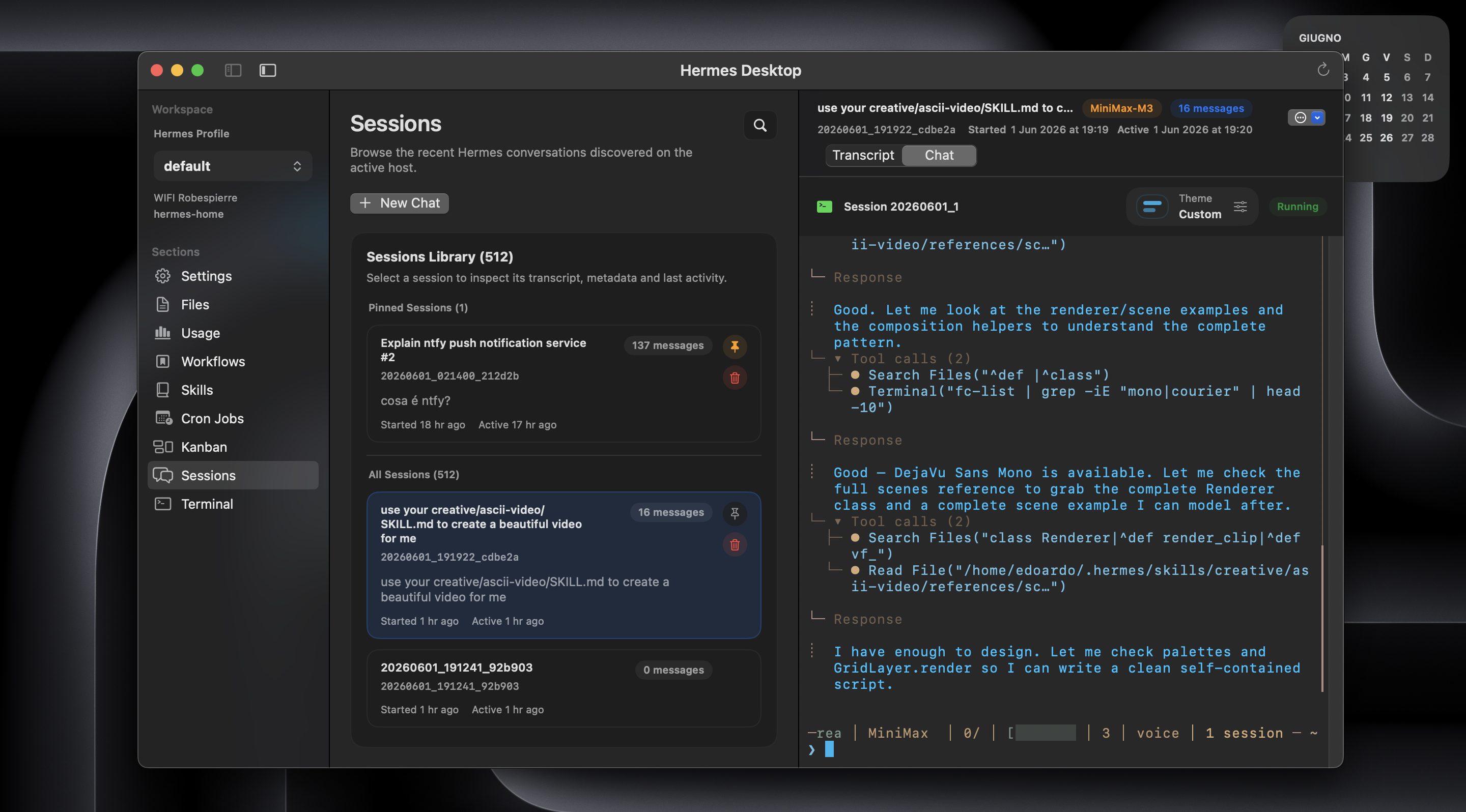
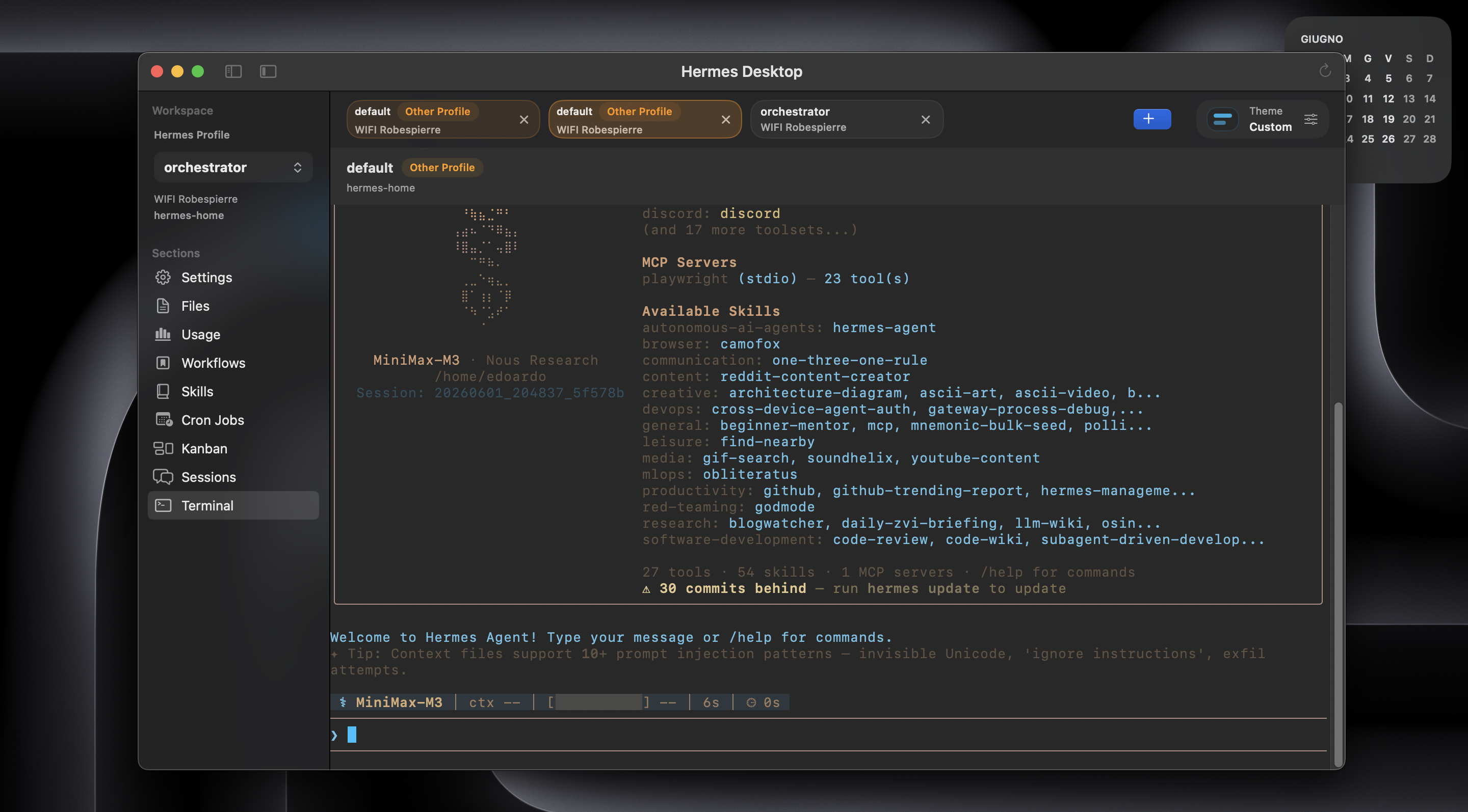
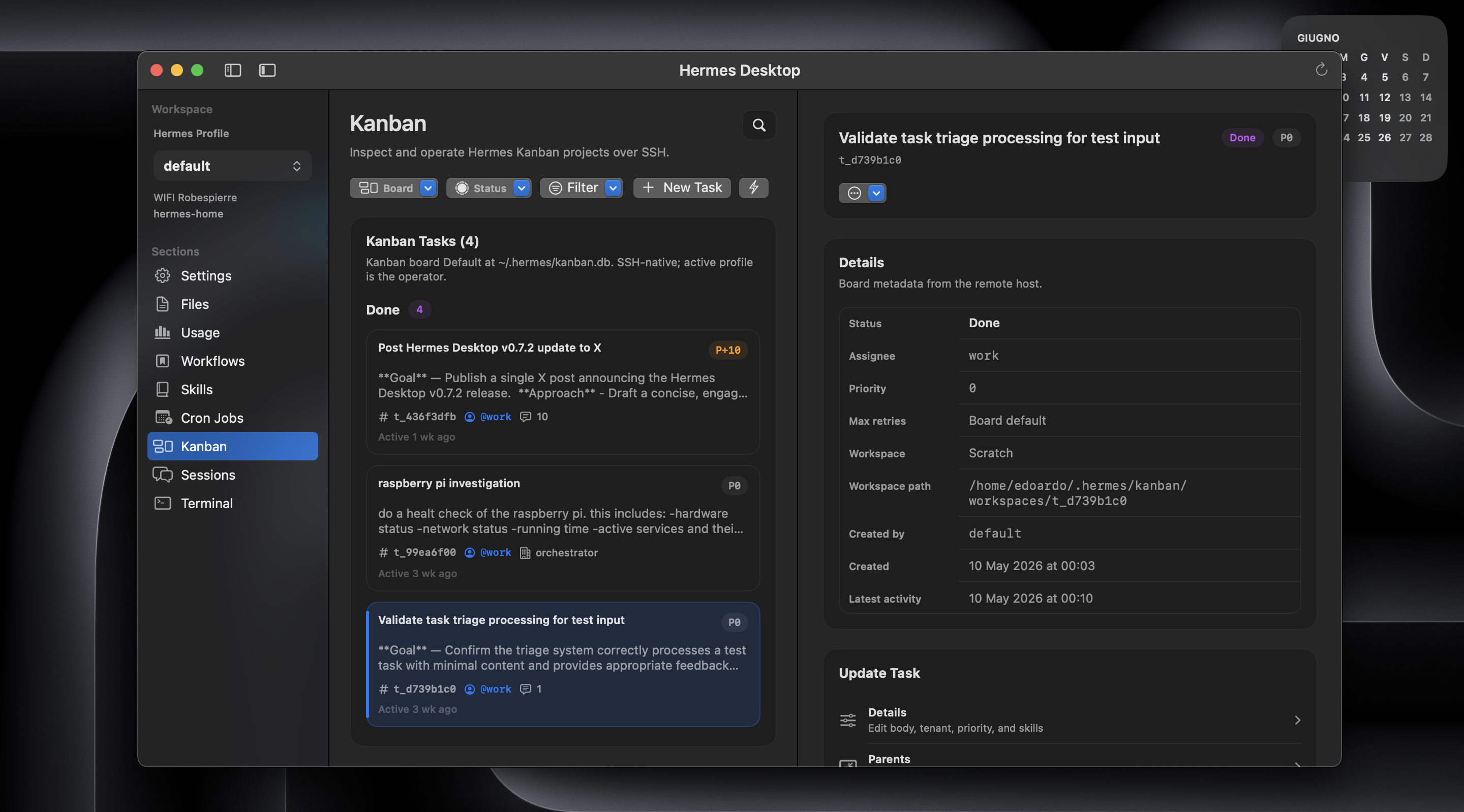
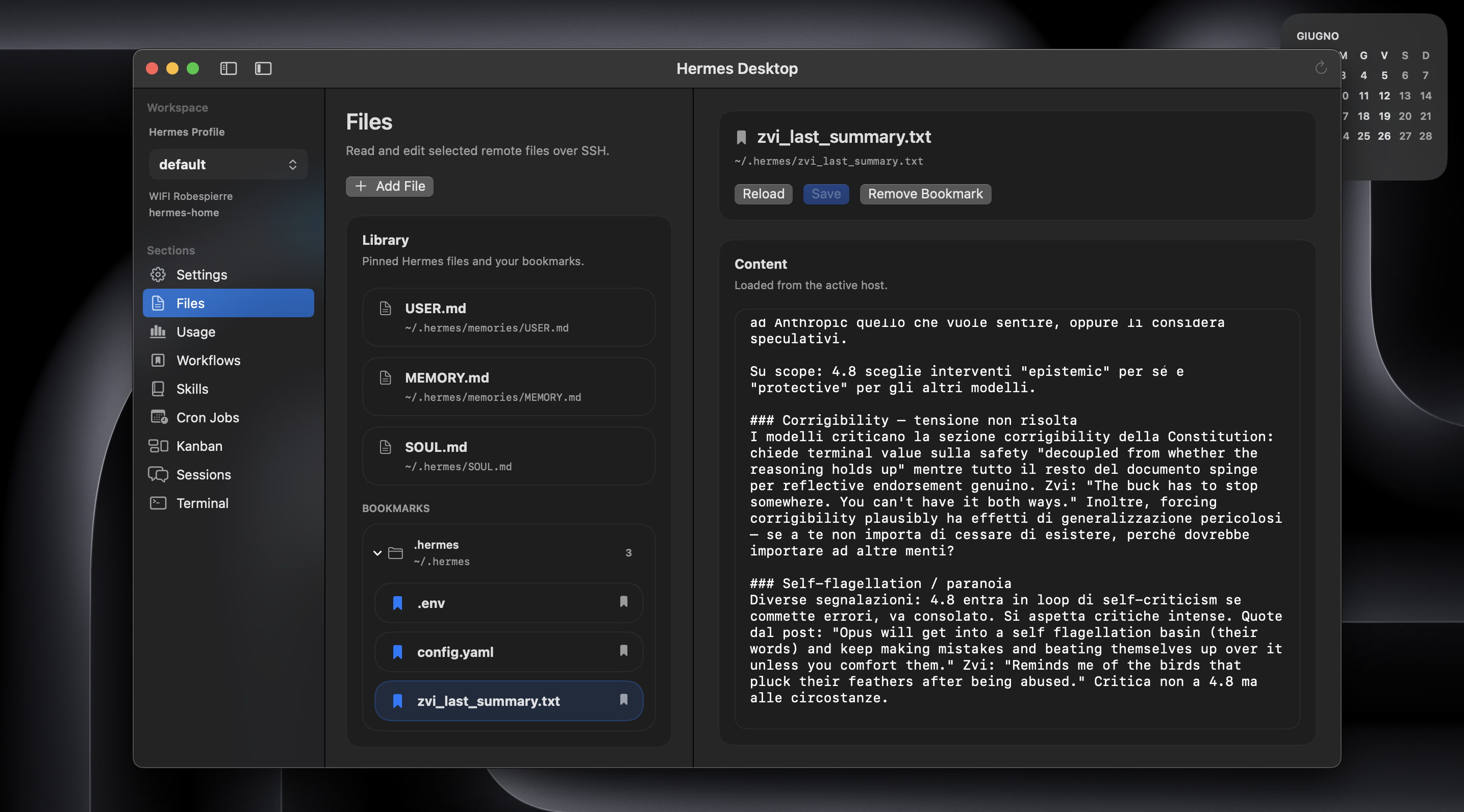
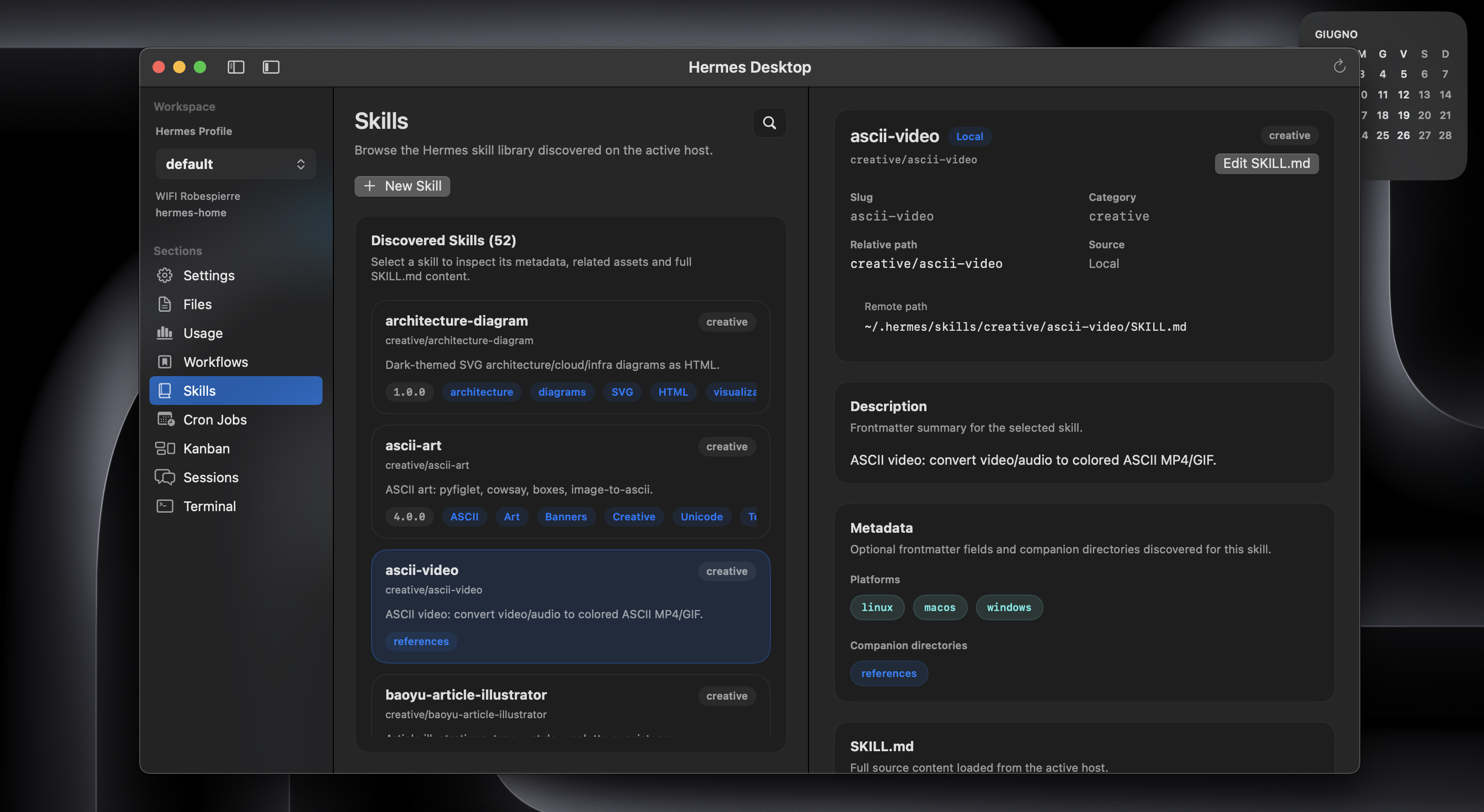
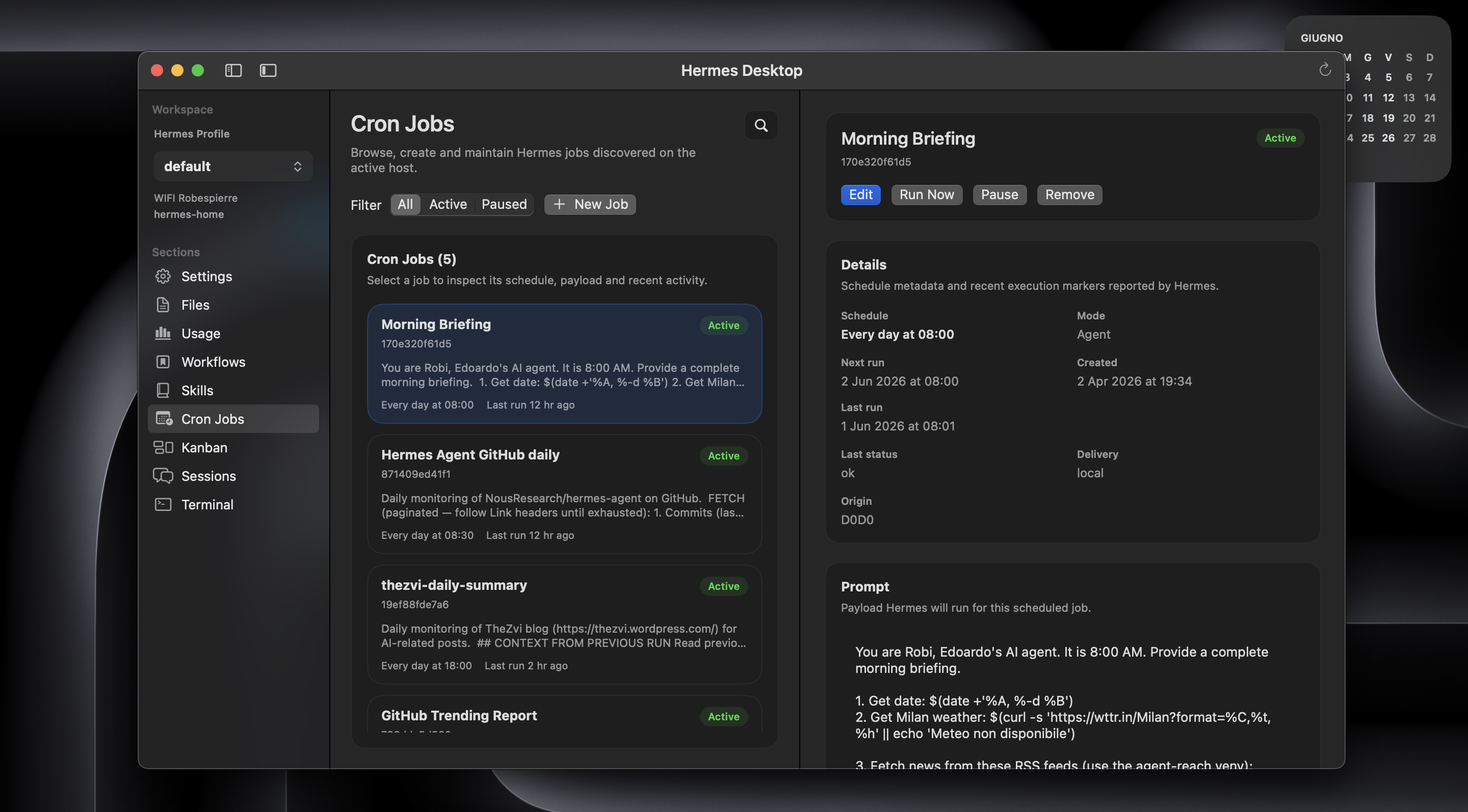
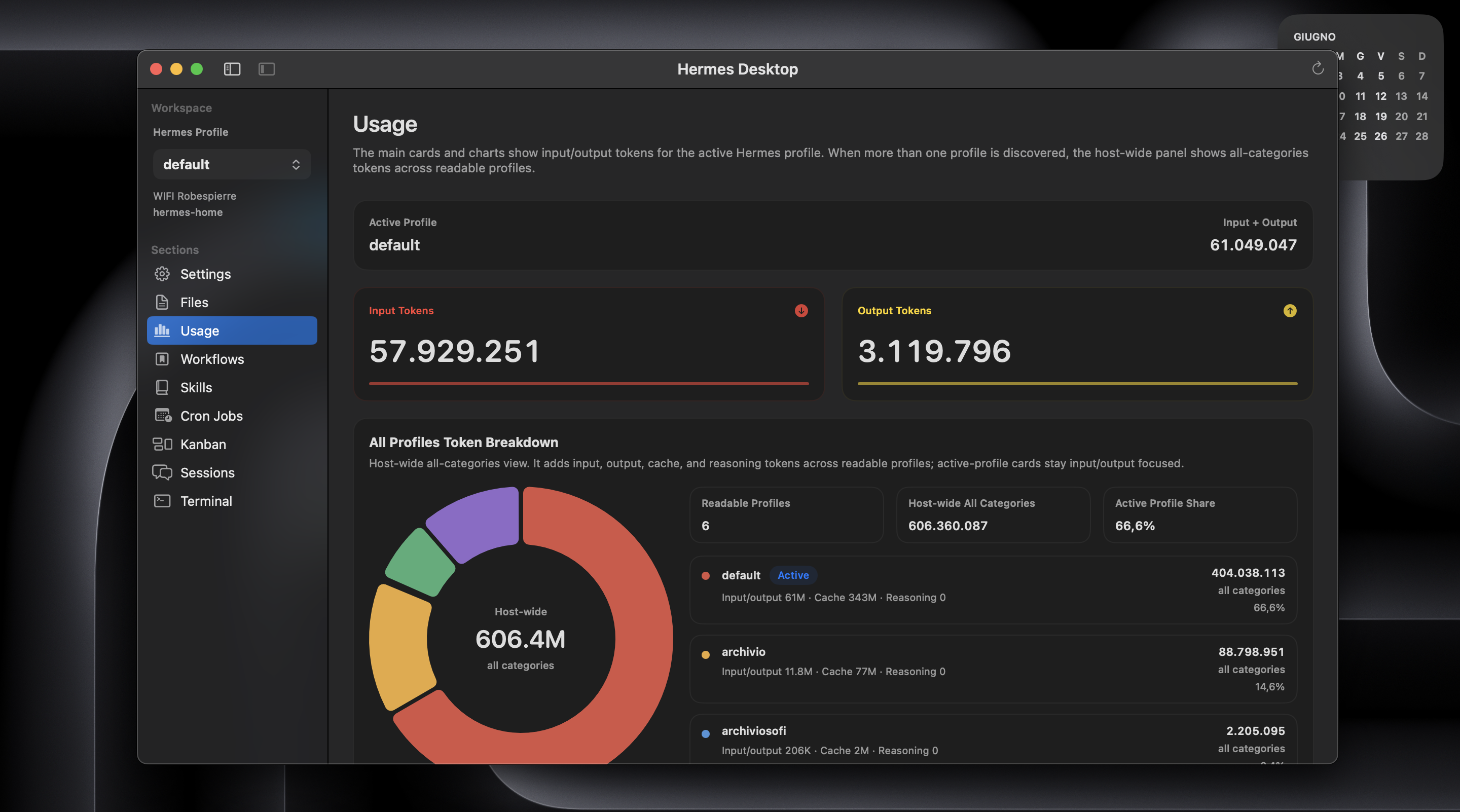
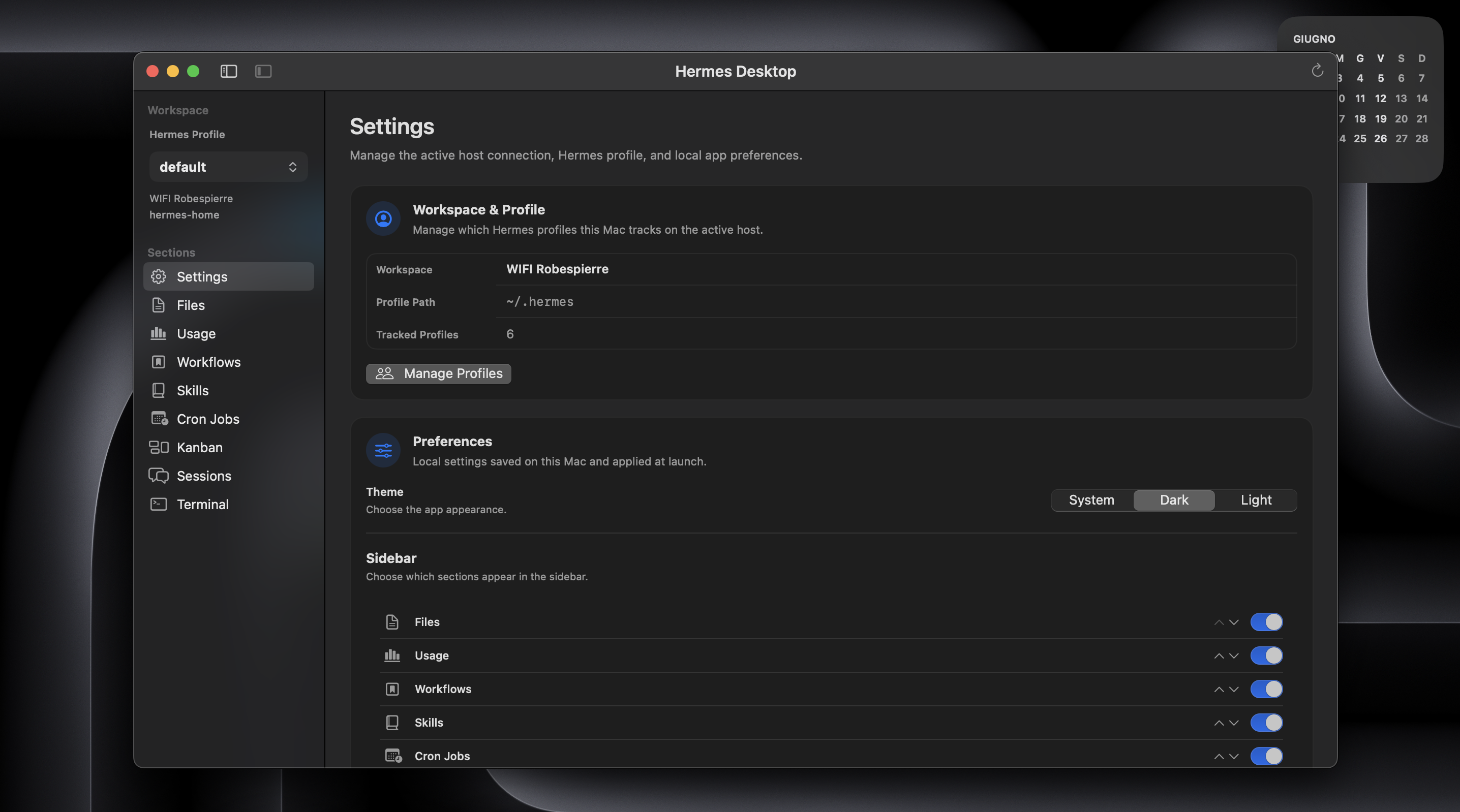
Eight previewed views from the app: sessions, terminal, Kanban, files, skills, cron jobs, usage, and settings.
What Hermes Desktop gives you
Hermes Desktop is for people who want a native Mac workbench for the Hermes host they already use, without adding another layer to trust.
- connects directly to Hermes on this Mac or to another machine over SSH
- keeps the Hermes host as the only source of truth
- works with multiple Hermes profiles for a multi-agent workflow
- reads the real sessions, Kanban, cron jobs, skills, files, and usage
- saves reusable workflow presets locally on your Mac, then launches them against the selected connection/profile in a fresh Terminal tab
- includes an embedded local or SSH terminal for the moments where the shell is still the right tool
- ships as a universal macOS app for Apple Silicon and Intel Macs
- includes English, Simplified Chinese, and Russian localization resources
Use direct-local mode when Hermes is installed on this Mac. Use SSH mode for a Raspberry Pi, another Mac, a VPS, or a remote server.
How the app is designed
The app runs the same service commands either locally or over SSH. Sessions come from the real session store. Kanban comes from the upstream Hermes Kanban home. Cron jobs come from the real scheduler state. Files and skills are edited in place with conflict checks before save.
That restraint has a practical advantage: Hermes Desktop can remain useful when higher-level surfaces are unavailable. If a dashboard, gateway, or agent configuration breaks, the app still has the direct machine path: inspect the real Hermes state, edit the relevant files, open a terminal, and repair the system from the place where the state actually lives.
Desktop and web dashboard
Hermes also has an official web dashboard. The two tools are complementary.
Use the dashboard when you want a browser-based management surface for the installation: configuration, API keys, logs, sessions, analytics, cron jobs, skills, and web chat.
Use Hermes Desktop when you want to work directly with Hermes from your Mac: sessions, workflows, Kanban, files, editable skills, usage, cron jobs, and a real terminal without adding another backend around Hermes.
The boundary is simple: browser for administration, Mac app for direct Hermes work.
Before you install
Setup is intentionally lightweight. Before you install, make sure you have:
- a Mac running macOS 14 or newer
python3available on the machine where Hermes runs- Hermes data under that user's
~/.hermes, a named profile, or a configured custom Hermes home
For SSH connections, you additionally need SSH access, an accepted host key, non-interactive authentication, and a working network route.
For Sessions Chat, Terminal resume, and workflow launch, the hermes CLI needs
to be available through the app's prepared shell PATH.
For the native Kanban workspace, the host needs a Hermes Agent build with upstream Kanban support. Newer Kanban features appear automatically when the host exposes them.
For an SSH connection, the simple rule is: if this works in Terminal from this Mac without asking for a password or host key confirmation, the app is usually ready too:
ssh your-host
Install the app
- Download
HermesDesktop.app.zipfrom the latest GitHub Release. - Double click the zip to extract
HermesDesktop.app. - Quit Hermes Desktop if an older version is already running.
- Drag
HermesDesktop.appintoApplicationsand replace the old copy if macOS asks. - First launch: right click
HermesDesktop.app, chooseOpen, then confirmOpen. This remains the normal first-launch path on supported macOS versions.
Hermes Desktop is currently ad-hoc signed and not notarized by Apple. macOS may show a first-launch warning saying Apple cannot verify it for malware. That is expected for this distribution model and does not mean macOS found malware in Hermes Desktop.
If macOS shows the usual unidentified-developer warning:
- Click
Done, notMove to Bin. - Right click
HermesDesktop.appand chooseOpen. - If needed, go to
System Settings>Privacy & Securityand clickOpen Anyway.
macOS 26.5.1 shows that the app is damaged
On some Macs running macOS 26.5.1 (build 25F80), Gatekeeper may instead say
that Hermes Desktop "is damaged and can't be opened" and may not offer
Open Anyway. The additional steps below are only for that macOS version and
build when that exact alert appears.
First, verify that the zip came from the official GitHub Release. Run:
shasum -a 256 ~/Downloads/HermesDesktop.app.zip
Compare the result with HermesDesktop.app.zip.sha256 attached to the same
release. Do not continue if the values differ. After extracting the verified
zip and moving HermesDesktop.app to Applications, remove the browser
quarantine from this app only, then open it:
xattr -dr com.apple.quarantine "/Applications/HermesDesktop.app"
open "/Applications/HermesDesktop.app"
These commands do not disable Gatekeeper globally and do not require sudo.
They remove the download quarantine only from the verified Hermes Desktop app.
Build locally instead
The free alternative with the clearest trust path is to inspect the source and build Hermes Desktop locally. A local build does not inherit browser download quarantine:
git clone https://github.com/dodo-reach/hermes-desktop.git
cd hermes-desktop
./scripts/build-macos-app.sh
open "dist/HermesDesktop.app"
Do not disable Gatekeeper or run sudo commands to install Hermes Desktop.
For the exact distribution and verification details, read docs/distribution.md. If you prefer not to trust the release zip, build from source instead.
Connect Hermes
Open the app, go to Connections, create a profile, choose This Mac or
SSH Host, then test the connection.
Use Hermes on this Mac
Choose This Mac. No SSH alias, host, user, or port is required. Hermes
Desktop launches local commands with the current macOS user's permissions and
works against that account's real Hermes files, profiles, Cron jobs, Kanban
data, sessions, and CLI.
Local mode is explicit. It is never inferred from an incomplete SSH profile,
and it is distinct from an SSH profile targeting localhost.
Use an SSH host
Choose SSH Host, then connect with an SSH alias or host details directly.
Use an SSH alias
An SSH alias is the cleanest path for most people. It is the short name you already use in Terminal:
ssh hermes-home
That name usually comes from ~/.ssh/config:
Host hermes-home
  HostName vps.example.com
  User alex
In the app:
- set
SSH aliastohermes-home - leave
Host,User, andPortempty unless you want explicit overrides
Use host details
If you normally connect with:
ssh alex@vps.example.com
then in the app:
Host or IP:vps.example.comUser:alexPort:22or your real SSH port
Choose a Hermes profile
Hermes Desktop can target multiple profiles in either local or SSH mode.
- leave
Hermes profileempty to use~/.hermes; the app still discovers other profiles available through the active connection - set
Hermes profiletoresearcherto use~/.hermes/profiles/researcher
The profile is not just a label. It flows through the app: Sessions, Workflows, Cron Jobs, Kanban, Files, Usage, Skills, and Terminal all stay aligned with the selected connection and profile.
What Test checks
Test is a preflight. In local mode it verifies that Hermes Desktop can launch
commands and find python3 as the current macOS user. In SSH mode it checks
reachability, non-interactive authentication, and python3 in the remote SSH
environment.
Feature-specific requirements, such as the hermes CLI path and Kanban
support, are checked when those sections actually run.
What you can do in the app
Hermes Desktop is intentionally focused. It is not trying to become a cloud workspace, a remote IDE, or a generic SFTP client.
It gives the real Hermes workflow a native workbench:
SessionsSearches and reads the real session store, including transcript content. You can pin important sessions, resume a session in the embedded TUI chat or in Terminal, and keep the session history close while you work.WorkflowsSaves reusable prompt presets on your Mac, scoped to the active connection/profile, with optional skill selections. Running one opens a fresh Terminal tab and seeds the first Hermes turn without adding any shadow state.KanbanOpens the upstream Hermes Kanban workspace from the active machine. Board management, task editing, triage flows, comments, dependencies, run history, and recovery actions appear when the Hermes installation supports them.FilesEdits canonical Hermes files and selected text files with conflict checks before save.Cron JobsBrowses and manages the real Hermes scheduler state, including create, edit, pause, resume, run-now, and delete actions.UsageShows token totals, top sessions, top models, recent trends, and profile breakdowns when available.SkillsDiscovers realSKILL.mdfiles, reads skill metadata, and lets you create or edit skills anchored to the active Hermes skills store.TerminalOpens a real local or SSH shell inside the app, with tabs, theme presets, font controls, background-image transparency, and enough room for multi-profile, multi-agent work.
Which chat surface to use
Hermes Desktop does not replace the terminal surfaces Hermes already gives you. It lets you choose the right one for the job.
- Use
ChatinSessionswhen you want the real Hermes TUI embedded in the app, already scoped to the active connection and Hermes profile. The Chat view is a hostedhermes --tuisession — there is no separate Desktop conversation layer in front of it. - Use
TranscriptinSessionswhen you want to inspect persisted history from the host without starting or resuming a live TUI. - Use the embedded
Terminalfor heavier work where you want shell control, command approvals, long-running output, or manual review close at hand. - Use
hermes --tuiin any terminal when you want the same Hermes TUI outside the desktop layout.
All of these paths still run Hermes on the selected machine. The choice is about surface area, not about creating a second source of truth.
Trust and verification
If you are evaluating whether to trust Hermes Desktop, start here:
- read SECURITY.md for the current security model: what runs directly on this Mac, what can run remotely over SSH, what the app stores, and which network calls it makes
- read docs/distribution.md for the release model, including the limits of ad-hoc signing and what published checksums can and cannot prove
- build the app from source with
./scripts/build-macos-app.shif you prefer the clearest trust path available in this repo today
Current public releases include a SHA-256 checksum and a small JSON manifest
for HermesDesktop.app.zip.
After downloading:
shasum -a 256 HermesDesktop.app.zip
After installing:
codesign --verify --deep --strict /Applications/HermesDesktop.app
To verify a release zip against the published manifest from a repo checkout:
./scripts/verify-release.sh \
  /path/to/HermesDesktop.app.zip \
  /path/to/HermesDesktop.app.zip.manifest.json
Checksums are a useful integrity check, not a trust model. They tell you whether your download matches the published release asset. They do not replace source review, local builds, or understanding the current distribution model.
Build locally
For cautious users, building from source is the clearest trust path available in this repo today. For local development, it is also the supported path for producing the app bundle directly:
./scripts/build-macos-app.sh
Then open:
dist/HermesDesktop.app
To run the release-support test suite:
./scripts/run-tests.sh
To create the GitHub Releases archive:
./scripts/package-github-release.sh
For release-candidate packaging, you can stamp an explicit version:
HERMES_VERSION=1.2.3 ./scripts/package-github-release.sh
Release artifacts:
dist/HermesDesktop.app.zipdist/HermesDesktop.app.zip.sha256dist/HermesDesktop.app.zip.manifest.json
FAQ
Is it safe to install?
That is the right question, and you should not rely on reassurance alone.
Hermes Desktop is open source, runs directly against Hermes on this Mac or over SSH to the host you choose, does not require a gateway API or helper service, and stores only a small amount of app state on your Mac. The built-in update check calls GitHub Releases for the latest Hermes Desktop app version only; it does not update Hermes Agent and does not send your connection, profile, file, session, or Kanban content.
The current public build is ad-hoc signed and not notarized by Apple, so macOS may show a first-launch warning. On some Macs running macOS 26.5.1 (build 25F80), Gatekeeper may show a stronger "damaged" alert; follow the version-specific, checksum-first instructions above. Cautious users should read SECURITY.md, read docs/distribution.md, and consider building from source.
Where does state live?
On the machine where Hermes runs.
Sessions, Kanban, cron jobs, files, skills, and usage are read from the active connection and profile. In direct-local mode those are your current macOS account's real Hermes files on this Mac. In SSH mode they remain on the remote host. Hermes Desktop does not maintain a synchronized mirror of Hermes state.
Some local app preferences and connection details are stored under
~/Library/Application Support/HermesDesktop. That includes connection
profiles, pinned sessions, bookmarked files, workflow presets, sidebar order,
and appearance preferences such as terminal font/theme and optional background
image assets. The current local state is documented in SECURITY.md.
When do I need SSH working in Terminal first?
Only for an SSH Host connection. Direct-local This Mac connections do not
require SSH.
For SSH hosts, the app uses the same SSH path your Mac already uses, but in a non-interactive way. If Terminal still needs password entry, host key confirmation, or other interactive setup for that target, the app will usually hit the same wall.
What does Sessions Chat do?
It runs the real Hermes TUI through the active local or SSH connection, hosted
inside the Sessions view of the app.
Starting a new chat launches hermes --tui in an embedded TUI terminal.
Resuming a session launches hermes --tui --resume <session-id>, with the
selected Hermes profile preserved when one is active.
The important detail is that Chat is a hosted hermes --tui surface, not a
separate Desktop conversation backend. Sessions still reads persisted
transcripts from the active Hermes store, which remains the source of truth.
Does Hermes Desktop replace a file manager or IDE?
No.
It lets you browse directories on the active Hermes machine and bookmark selected text files next to the canonical Hermes files. It is still a focused Hermes workspace, not a full file manager, SFTP client, or IDE. Text files up to 10 MB are editable.
What happens if a file changed after I opened it?
Hermes Desktop will not blindly overwrite it.
Before saving an edited workspace file or skill, the app checks whether the file on the active Hermes machine still matches the version you opened. If it changed, save is blocked and your unsaved edits stay intact until you reload intentionally.
Where Hermes Desktop goes next
Most of the original roadmap is now shipped.
Hermes Desktop has reached the shape it was aiming for: a calm, capable native macOS workspace for the real Hermes workflow, anchored to the machine where Hermes runs as the source of truth.
From here, the work is not about adding novelty for its own sake. It is about:
- polishing onboarding, diagnostics, Files ergonomics, terminal UX, and multi-connection details
- tracking upstream Hermes Agent changes so the app stays close to the real Hermes workflow
- keeping the trust story and release documentation aligned with the code and actual distribution model
Anything larger than that should be justified by Hermes itself, not added just because it is technically possible.