outsourc-e/hermes-workspace
Native web workspace for Hermes Agent — chat, terminal, memory, skills, inspector.
Hermes Workspace is a comprehensive command center designed to orchestrate AI agents through a unified web interface. It integrates with the vanilla hermes-agent to provide a zero-fork environment for managing chat, memory, and system operations. The platform features a Swarm Mode that utilizes tmux-backed workers for autonomous, role-based task dispatching and a Kanban board for tracking progress. Users can manage over 2,000 skills, browse MCP catalogs, and access a cross-platform PTY terminal from a single dashboard.
- Swarm Mode with role-based dispatch and tmux-backed workers
- Integrated memory browser, skills manager, and MCP catalog
- Full workspace file browser with Monaco and PTY terminal
full readme from github

Hermes Workspace
Your AI agent's command center — chat, files, memory, skills, and terminal in one place.


Not a chat wrapper. A complete workspace — orchestrate agents, browse memory, manage skills, and control everything from one interface.
v2 — zero-fork. Clone, don't fork. Runs on vanilla
NousResearch/hermes-agentinstalled via Nous's own installer. Chat, sessions, memory, skills, jobs, MCP, terminal, dashboard, Agent View, and Operations are all in vanilla parity. Conductor uses the dashboard mission API when available and falls back to Workspace-native Swarm dispatch (mode: native-swarm) when the dashboard endpoint is absent, preserving zero-fork behavior (#262).
Swarm Mode
Hermes Agent Swarm turns the workspace into a live control plane: unlimited Hermes Agents, 1 orchestrator, 0 humans manually dispatching. Persistent tmux workers keep context across tasks, rotate safely, and report proof-bearing checkpoints. Role-based dispatch routes builders, reviewers, docs, research, ops, triage, QA, and lab lanes without turning Eric into the task router. A byte-verified review gate protects release branches before PRs ship. Autonomous PR/issue lanes, lab experiments, and the repair playbook keep the machine moving while humans handle judgment.
Start here: docs/swarm/
- Orchestrator Chat — ask the control plane for one task, a decomposed mission, or a full broadcast.
- Multi-Agent Control Plane — see persistent Hermes Agents, roles, state, runtime, and routing wires in one surface.
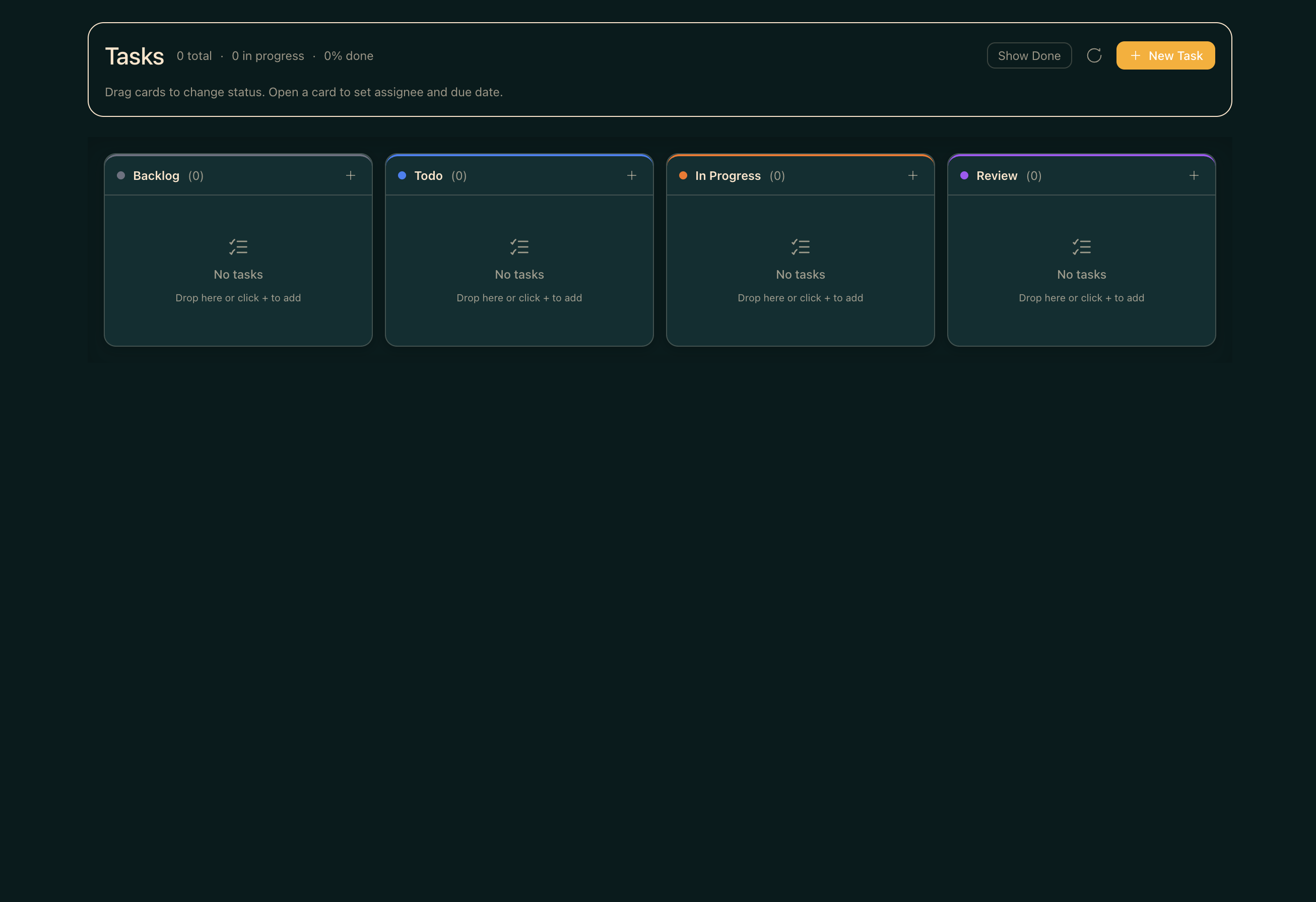
- Kanban TaskBoard — plan backlog, ready, running, review, blocked, and done lanes without leaving the workspace.
- Reports + Inbox — review checkpoints, blockers, handoffs, and ready-for-human decisions.
- TUI View built in — attach to tmux-backed workers or fall back to a live shell/log stream.
✨ What's inside
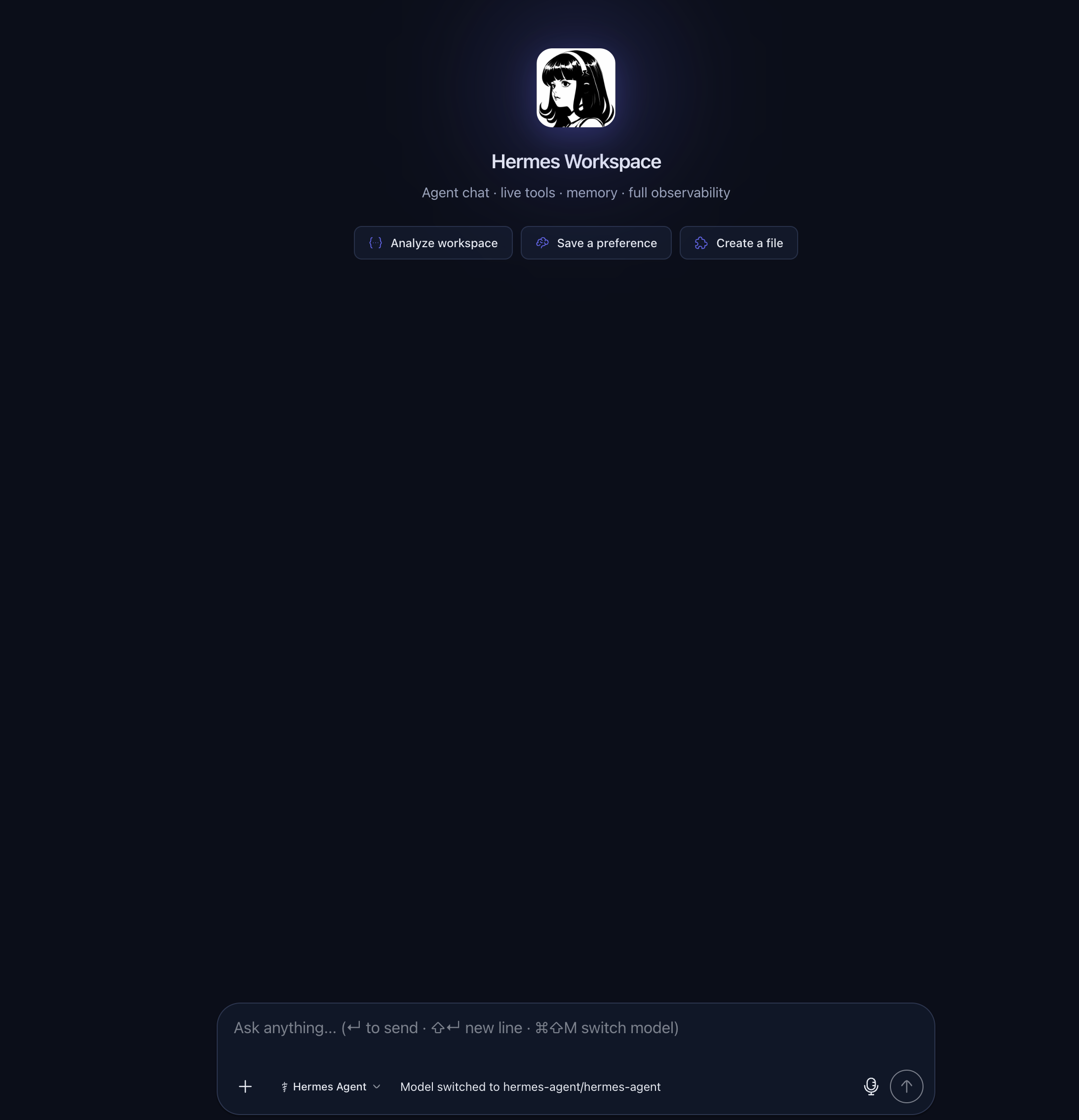
- 💬 Chat — Real-time SSE streaming, tool call rendering, multi-session, markdown + syntax highlighting
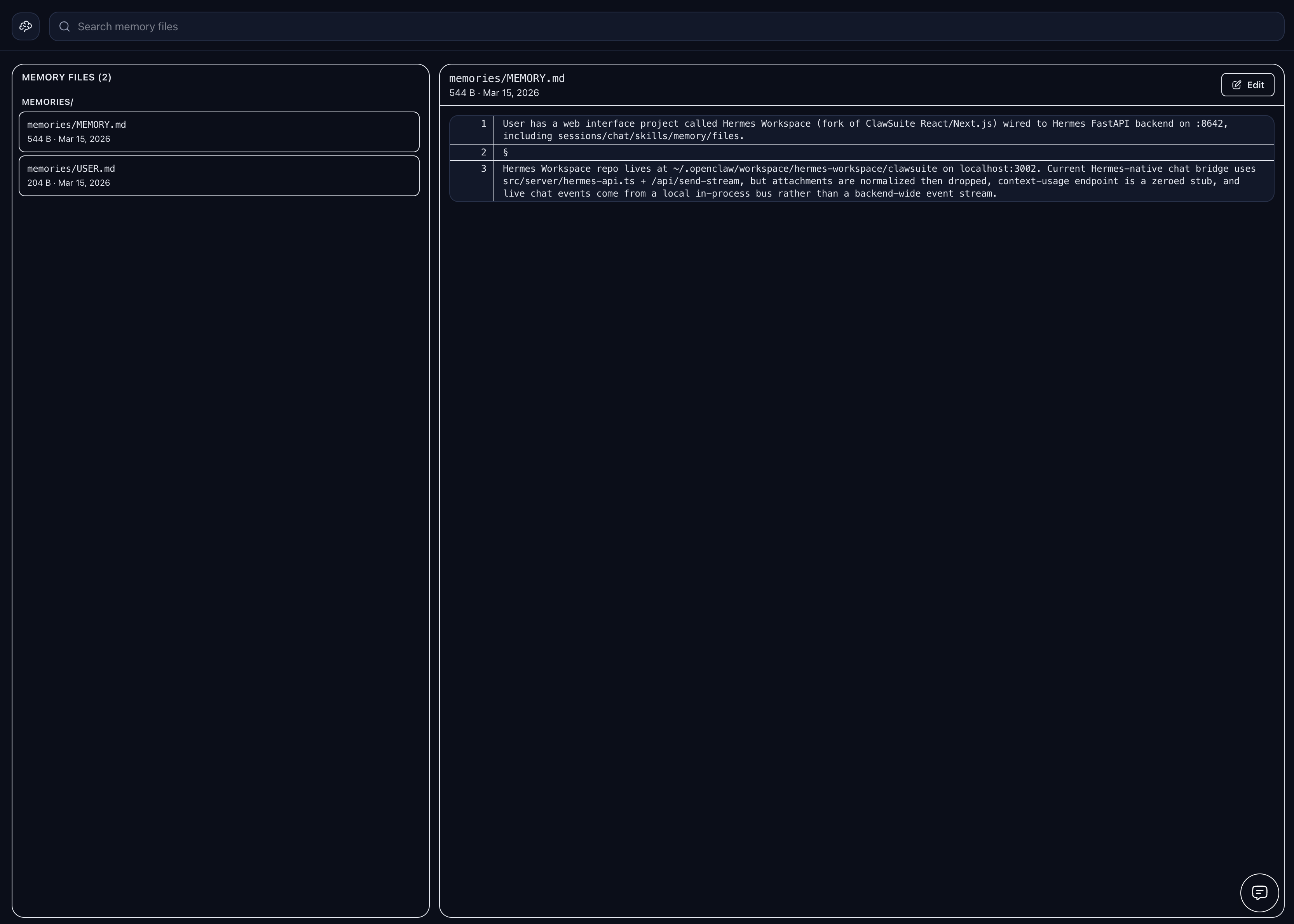
- 🧠 Memory — Browse, search, and edit agent memory; markdown live editor
- 🧩 Skills — Browse 2,000+ skills with origin badges, filters, source paths, marketplace
- 🔌 MCP — Full /mcp page (catalog + marketplace + sources), or fallback to local config CRUD
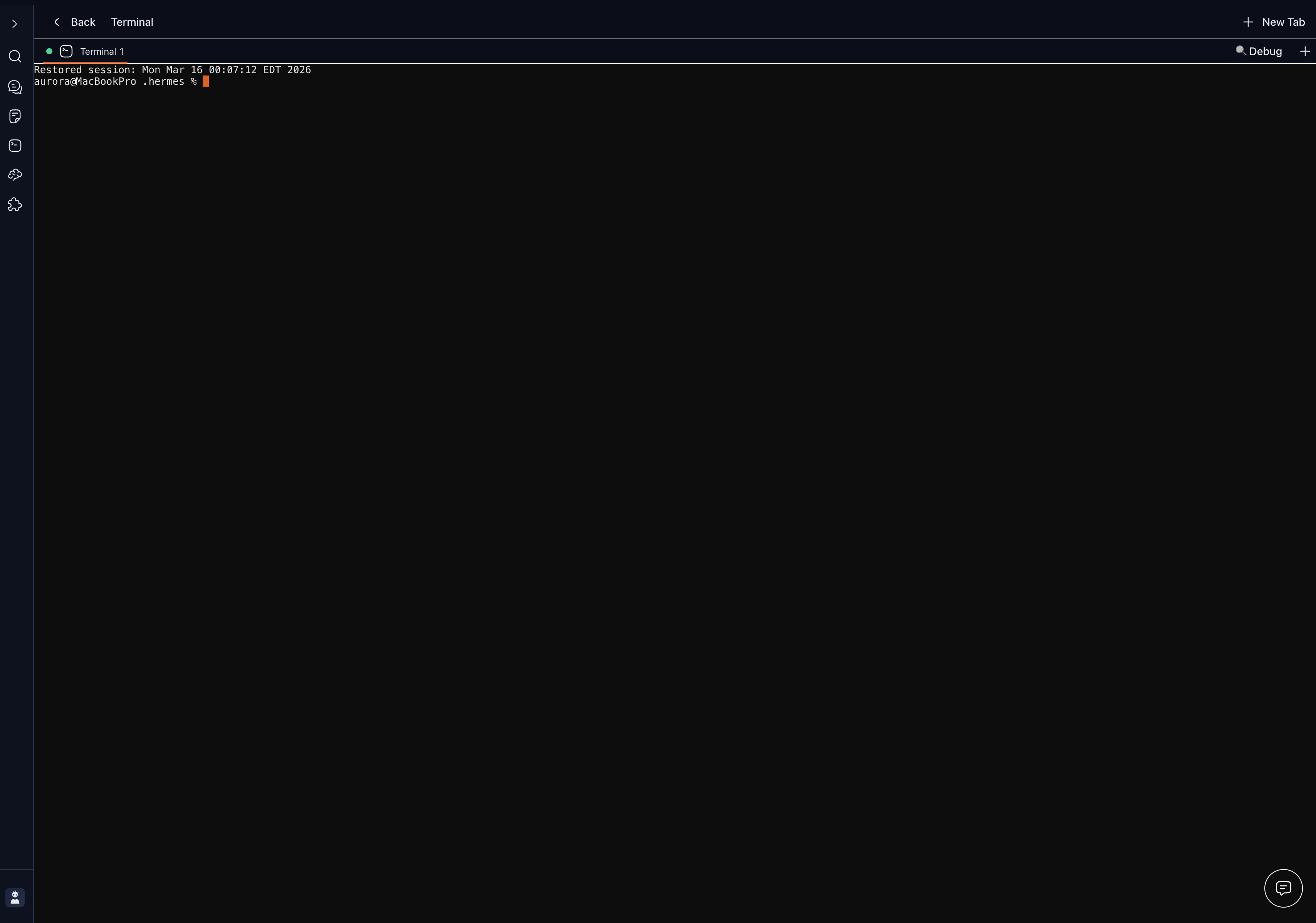
- 📁 Files + Terminal — Full workspace file browser with Monaco; cross-platform PTY terminal
- 🎮 Operations — Multi-agent dashboard with profile presets (Sage/Trader/Builder/Scribe/Ops) and 'Needs setup' detection
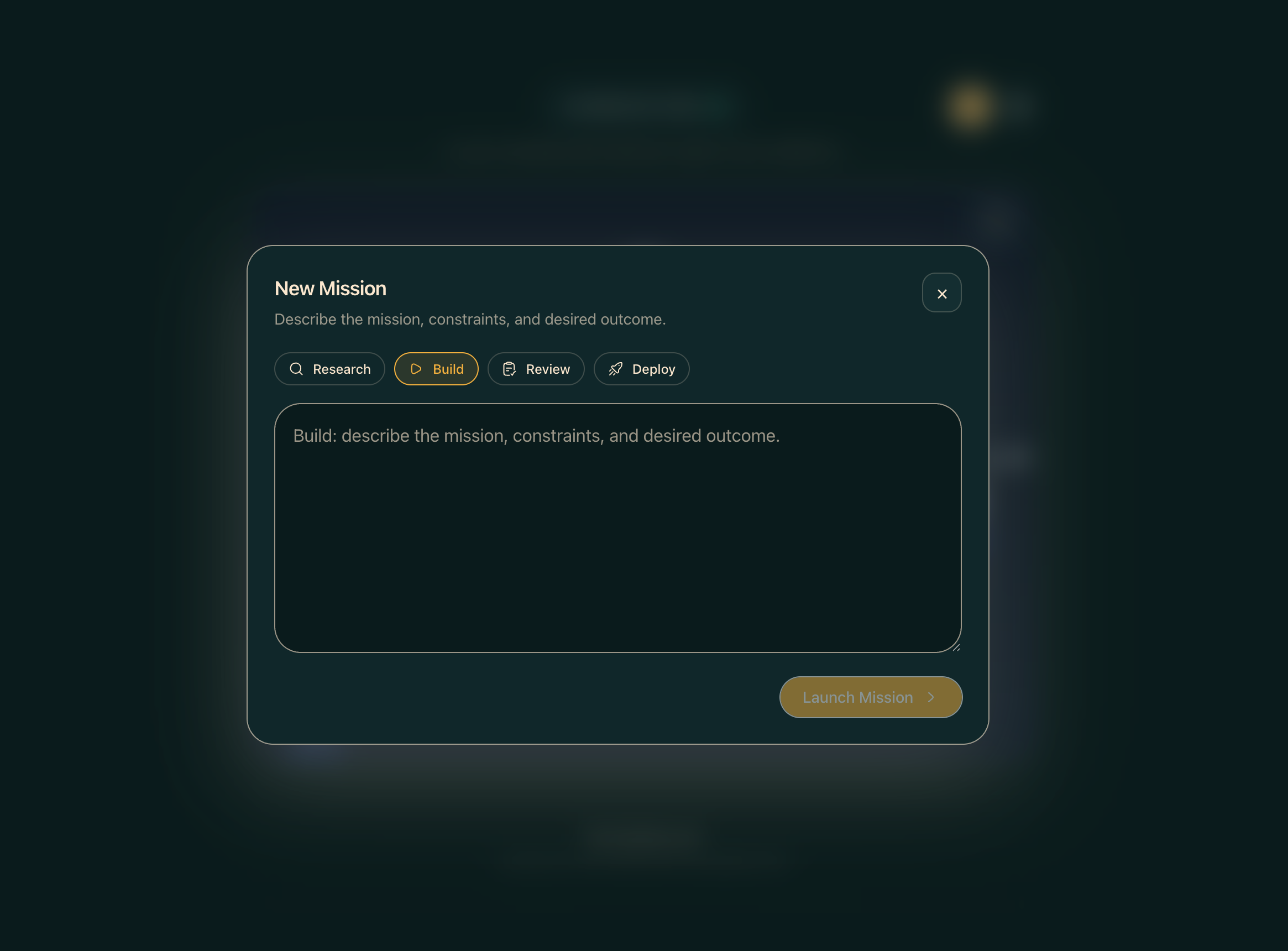
- 📡 Conductor — Mission dispatch + decomposition with dashboard-backed missions when available and Workspace-native Swarm fallback otherwise
- 👥 Agent View — Live agent panel in chat with avatar, queue, history, usage meter
- 🐝 Swarm Mode — Persistent tmux-backed Hermes Agent workers with role-based dispatch
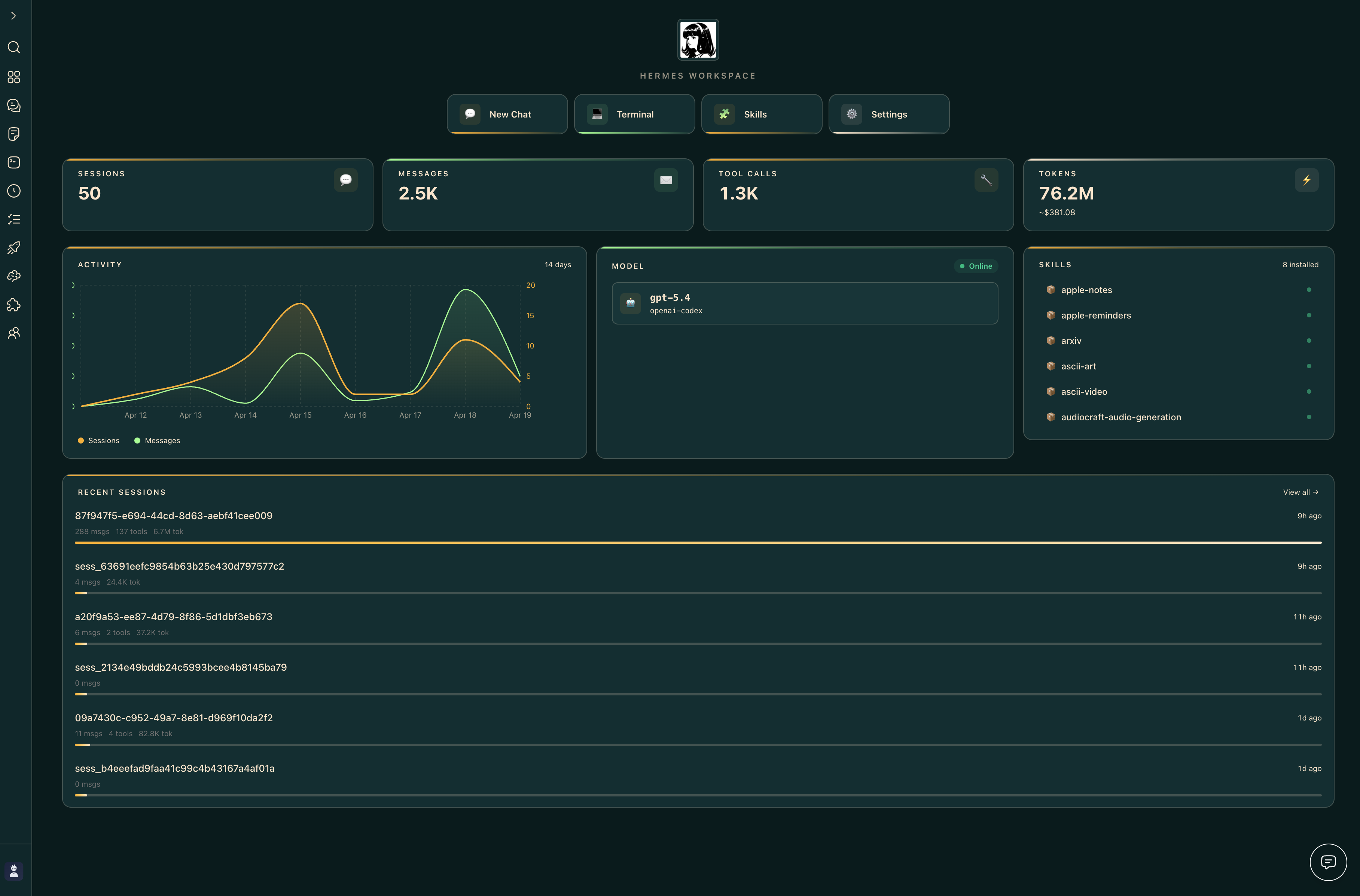
- 🗄️ Dashboard — Aggregated overview: sessions, model mix, cost ledger, attention card, ops strip
- 🎨 Themes — Hermes, Nous, Bronze, Slate, Mono (light + dark)
- 🔒 Security — Auth middleware on every route, CSP, path-traversal guard, fail-closed remote bind
- 📱 PWA + Tailscale — Install as a native-feeling app; access from any device on your tailnet
- ⚙️ Capability gates — Features that need upstream endpoints (Conductor) show a clean placeholder instead of failing mid-action
📸 Screenshots
| Chat | Conductor |
|---|---|
 |
 |
| Dashboard | Memory |
|---|---|
 |
 |
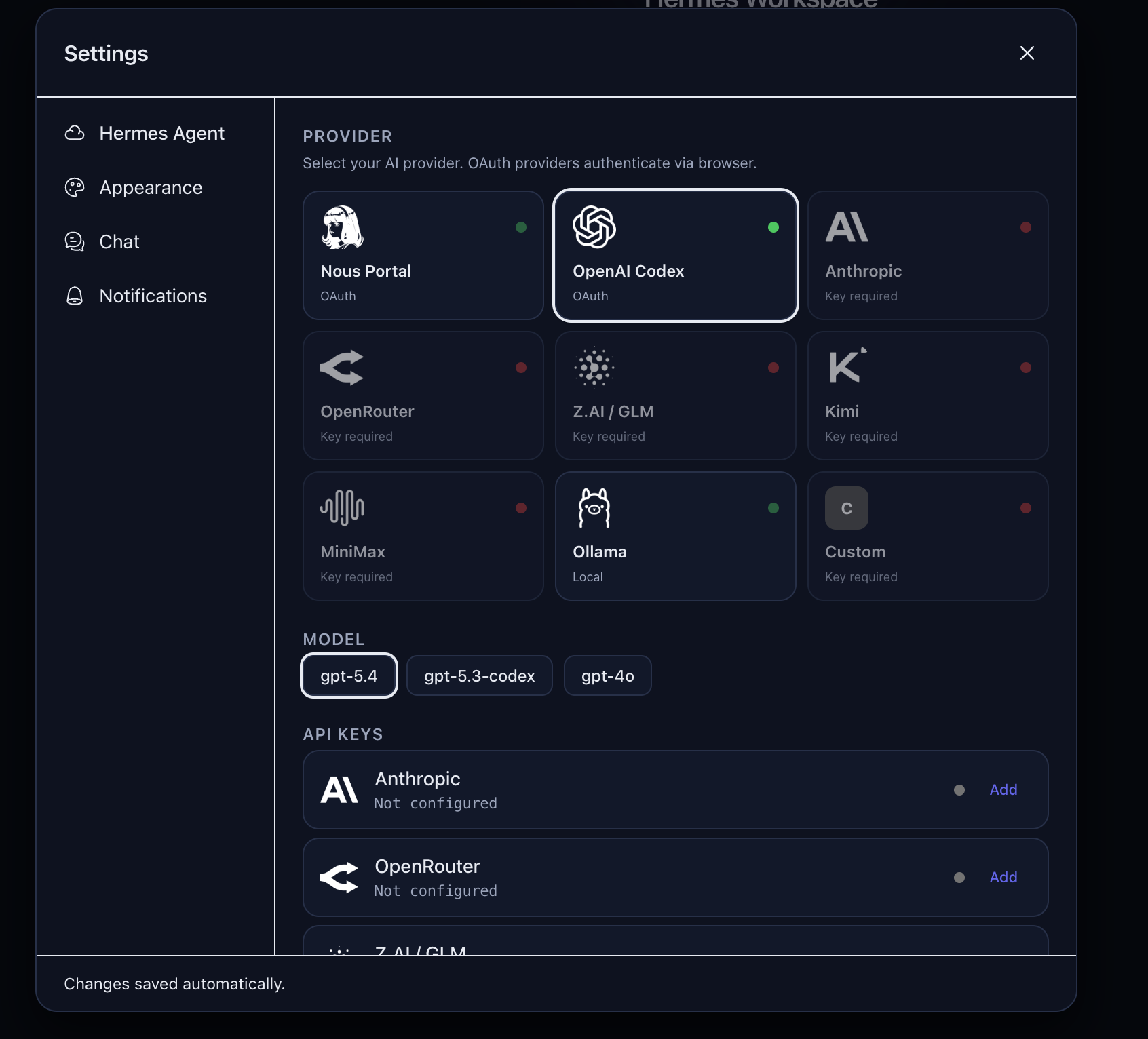
| Terminal | Settings |
|---|---|
 |
 |
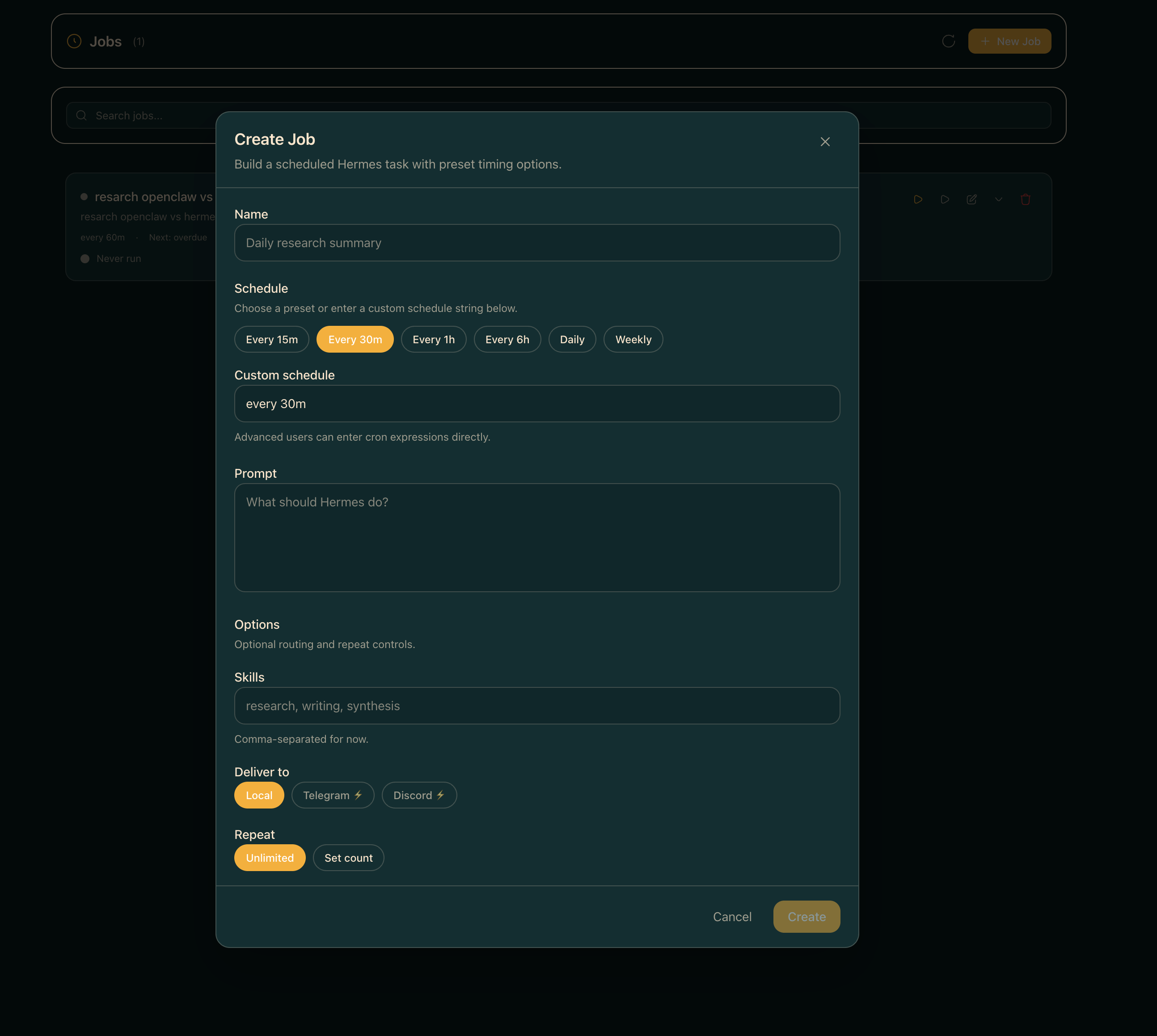
| Tasks | Jobs |
|---|---|
 |
 |
🚀 Quick Start
Three paths — pick the one that matches you:
| Path | Best for | Time |
|---|---|---|
| 🐳 Docker Compose | Self-hosters, home labs, "give me a compose gig" | ~2 min |
| 🌐 One-line install | Local dev on macOS/Linux | ~3 min |
🔌 Attach to existing hermes-agent |
You already run Hermes Agent | ~1 min |
One-line install
curl -fsSL https://raw.githubusercontent.com/outsourc-e/hermes-workspace/main/install.sh | bash
This installs hermes-agent via Nous's official installer, clones this repo, sets up .env, and installs dependencies. Then:
hermes gateway run                  # terminal 1
cd ~/hermes-workspace && pnpm dev   # terminal 2
Open http://localhost:3000. That's it.
Already running hermes-agent? Attach the workspace to it
If you already have hermes-agent installed (via Nous's official installer, a source checkout, systemd, Docker, or another existing setup) and it's serving the gateway at http://<host>:8642, you don't need to reinstall anything — just point the workspace at it.
git clone https://github.com/outsourc-e/hermes-workspace.git
cd hermes-workspace
pnpm install
cp .env.example .env

# Point at your existing Hermes Agent services.
echo 'HERMES_API_URL=http://127.0.0.1:8642' >> .env
# Zero-fork installs also need the separate dashboard API for config/sessions/skills/jobs.
echo 'HERMES_DASHBOARD_URL=http://127.0.0.1:9119' >> .env

# If your gateway was started with API_SERVER_KEY (auth enabled), set the same value:
# echo 'HERMES_API_TOKEN=***' >> .env

pnpm dev                            # http://localhost:3000 (override with PORT=4000 pnpm dev)
Requirements on the agent side:
- Gateway bound to an address the workspace can reach (typically
API_SERVER_HOST=0.0.0.0+ the port exposed). API_SERVER_ENABLED=truein~/.hermes/.env(or the agent's env) so the gateway serves core APIs on:8642.hermes dashboardrunning (defaulthttp://127.0.0.1:9119) for zero-fork installs. The dashboard provides config, sessions, skills, and jobs APIs.- If
API_SERVER_KEYis set, the workspace must pass the same value viaHERMES_API_TOKEN— otherwise leave both unset.
Verify both services before opening the workspace:
curl http://127.0.0.1:8642/healthshould return ok.curl http://127.0.0.1:9119/api/statusshould return dashboard metadata.curl http://127.0.0.1:3000/api/sessions(after the workspace boots) should return a sessions payload or an empty list.
If /api/sessions is already returning data, do not start another gateway just because the UI still says Offline — refresh or reprobe the Workspace UI first.
If your default model is gpt-5.4 / openai-codex, make sure Codex CLI auth is live before testing chat:
codex login
Then start the workspace and complete onboarding — it should detect the gateway + dashboard pair and unlock the enhanced panes automatically.
Running on a remote host (Tailscale / VPN / LAN)
If the workspace and its browser live on different machines — e.g. the workspace runs on a Pi/Mac/home server and you access it from your phone over Tailscale — point HERMES_API_URL at the reachable backend address, not 127.0.0.1:
# On the server running the workspace + gateway:
echo 'HERMES_API_URL=http://100.x.y.z:8642' >> .env
echo 'HERMES_DASHBOARD_URL=http://100.x.y.z:9119' >> .env

# Also tell the gateway to listen on all interfaces so Tailscale peers can reach it.
# In ~/.hermes/.env (or wherever the gateway reads config):
echo 'API_SERVER_HOST=0.0.0.0' >> ~/.hermes/.env
Then restart the gateway, dashboard, and workspace. Hit the workspace from the remote device and the connection probe will use the Tailscale IP instead of localhost. Both HERMES_API_URL and HERMES_DASHBOARD_URL must be set to Tailscale/LAN-reachable URLs — setting only one will leave the other probing 127.0.0.1 and failing.
If you've already started the workspace, you can update both URLs from Settings → Connection without restarting. The values are persisted to ~/.hermes/workspace-overrides.json and take effect immediately (gateway capabilities are reprobed on save). Editing .env still works for pre-start config and for CI/containers.
Manual install
Hermes Workspace works with any OpenAI-compatible backend. If your backend also exposes Hermes Agent gateway APIs, enhanced features like sessions, memory, skills, and jobs unlock automatically.
Prerequisites
- Node.js 22+ — nodejs.org
- An OpenAI-compatible backend — local, self-hosted, or remote
- Optional: Python 3.11+ if you want to run a Hermes Agent gateway locally
Step 1: Start your backend
Point Hermes Workspace at any backend that supports:
POST /v1/chat/completionsGET /v1/modelsrecommended
Example Hermes Agent gateway setup (from scratch):
# Install hermes-agent via Nous's official installer
curl -fsSL https://raw.githubusercontent.com/NousResearch/hermes-agent/main/scripts/install.sh | bash

# Configure a provider + start the gateway
hermes setup
hermes gateway run
Our one-liner installer (below) does both steps automatically. If you're using another OpenAI-compatible server, just note its base URL.
Step 2: Install & Run Hermes Workspace
# In a new terminal
git clone https://github.com/outsourc-e/hermes-workspace.git
cd hermes-workspace
pnpm install
cp .env.example .env
printf '\nHERMES_API_URL=http://127.0.0.1:8642\n' >> .env
pnpm dev                   # Starts on http://localhost:3000
Verify: Open
http://localhost:3000and complete the onboarding flow. First connect the backend, then verify chat works. If your gateway exposes Hermes Agent APIs, advanced features appear automatically.
Run without an open terminal
After pnpm build, install Workspace as a user-level launchd/systemd service:
chmod +x scripts/install-dashboard-service.sh
scripts/install-dashboard-service.sh
See docs/dashboard-service.md for macOS launchd, Linux systemd, logs, overrides, and uninstall steps.
Environment Variables
# OpenAI-compatible backend URL
HERMES_API_URL=http://127.0.0.1:8642

# Optional: provider keys the Hermes Agent gateway can read at runtime.
# You only need the key(s) for whichever provider(s) you actually use.
# OPENAI_API_KEY=sk-...                # GPT / o-series / OpenAI-compatible
# OPENROUTER_API_KEY=sk-or-v1-...      # OpenRouter (incl. free models)
# GOOGLE_API_KEY=AIza...               # Gemini
# (Ollama / LM Studio / local servers don't need a key)

# Optional: password-protect the web UI
# HERMES_PASSWORD=your_password
🧠 Local Models (Ollama, Atomic Chat, LM Studio, vLLM)
Hermes Workspace supports two modes with local models:
Portable Mode (Easiest)
Point the workspace directly at your local server — no Hermes Agent gateway needed.
Atomic Chat
# Start workspace pointed at Atomic Chat
HERMES_API_URL=http://127.0.0.1:1337/v1 pnpm dev
Download Atomic Chat, launch the desktop app, and make sure a model is loaded before starting Hermes Workspace.
Ollama
# Start Ollama
OLLAMA_ORIGINS=* ollama serve

# Start workspace pointed at Ollama
HERMES_API_URL=http://127.0.0.1:11434 pnpm dev
Chat works immediately. Sessions, memory, and skills show "Not Available" — that's expected in portable mode.
Enhanced Mode (Full Features)
Route through the Hermes Agent gateway for sessions, memory, skills, jobs, and tools.
Here are two explicit ~/.hermes/config.yaml examples for the local providers we support directly in the workspace:
Atomic Chat
provider: atomic-chat
model: your-model-name
custom_providers:
  - name: atomic-chat
    base_url: http://127.0.0.1:1337/v1
    api_key: atomic-chat
    api_mode: chat_completions
Ollama
provider: ollama
model: qwen3:32b
custom_providers:
  - name: ollama
    base_url: http://127.0.0.1:11434/v1
    api_key: ollama
    api_mode: chat_completions
You can adapt the same shape for other OpenAI-compatible local runners, but Atomic Chat and Ollama are the two built-in local paths documented in the workspace UI.
2. Enable the API server in ~/.hermes/.env:
API_SERVER_ENABLED=true
3. Start the gateway, dashboard, and workspace:
hermes gateway run          # Starts core APIs on :8642
hermes dashboard            # Starts dashboard APIs on :9119
HERMES_API_URL=http://127.0.0.1:8642 \
HERMES_DASHBOARD_URL=http://127.0.0.1:9119 \
pnpm dev
For authenticated gateways, also set HERMES_API_TOKEN in the workspace environment to the same value as API_SERVER_KEY.
All workspace features unlock automatically once both services are reachable — sessions persist, memory saves across chats, skills are available, and the dashboard shows real usage data.
Works with any OpenAI-compatible server — Atomic Chat, Ollama, LM Studio, vLLM, llama.cpp, LocalAI, etc. Just change the
base_urlandmodelin the config above.
🤝 Pair an Agent with the Workspace
Workspace is the UI. Hermes Agent is the brain. They talk over two HTTP services on localhost (or any reachable network).
┌───────────────┐         :8642 gateway          ┌────────────────┐
│   Workspace    │ ─────────────────────▶ │  Hermes Agent  │
│   :3000 (UI)   │ ◀───────────────────── │  CLI / brain   │
└───────────────┘         :9119 dashboard        └────────────────┘
Two services, three commands
hermes gateway run     # terminal 1 · :8642 · chat, models, streaming, jobs
hermes dashboard       # terminal 2 · :9119 · sessions, skills, config, MCP
cd ~/hermes-workspace && pnpm dev   # terminal 3 · :3000 · the UI
Tip:
pnpm start:allstarts gateway + dashboard + workspace in one shot if you've installed via the one-liner.
Windows (PowerShell + WSL) one-command startup
If you use Hermes Workspace from Windows with the agent running in WSL, use the helper script in this repo:
# from the repo root
.\scripts\start-hermes-workspace.ps1
To force a clean relaunch of the tmux session:
.\scripts\start-hermes-workspace.ps1 -Restart
Optional parameters:
-Distro <name>to target a non-default WSL distro-WorkspacePath </path/in/wsl>if your clone is not at~/hermes-workspace-SessionName <name>to use a custom tmux session name
Verify the pairing
curl http://127.0.0.1:8642/health        # → {"status":"ok","platform":"hermes-agent"}
curl http://127.0.0.1:9119/api/status    # → {"status":"ok", ...}
Both must return 200. If either fails, the workspace will fall back to portable mode (chat works, sessions/skills/memory show "Not Available").
.env settings the workspace cares about
# Required: where the gateway is
HERMES_API_URL=http://127.0.0.1:8642

# Recommended: where the dashboard is (unlocks sessions/skills/config/MCP/jobs)
HERMES_DASHBOARD_URL=http://127.0.0.1:9119

# Only if your gateway was started with API_SERVER_KEY=... — paste the same value:
# HERMES_API_TOKEN=***

# Optional: password-protect the web UI itself
# HERMES_PASSWORD=***
Common pairing scenarios
| Scenario | Set this |
|---|---|
| Workspace + gateway on the same machine | HERMES_API_URL=http://127.0.0.1:8642, HERMES_DASHBOARD_URL=http://127.0.0.1:9119 |
| Gateway on a remote server (Tailscale / VPN) | Set both URLs to the reachable IP (e.g. http://100.x.y.z:8642) and add API_SERVER_HOST=0.0.0.0 to the gateway's ~/.hermes/.env |
Already-running hermes-agent from upstream installer |
Just set HERMES_API_URL + HERMES_DASHBOARD_URL and skip the one-liner installer |
| Multiple agent profiles | Profiles live under ~/.hermes/profiles/<name> — the dashboard switches between them at runtime; workspace follows automatically |
Live re-pairing (no restart)
If you've already started the workspace, change either URL from Settings → Connection without restarting. Values persist to ~/.hermes/workspace-overrides.json and gateway capabilities are reprobed on save.
Troubleshooting
Could not reach Hermes gateway on 8645, 8642, or 8643— gateway isn't running, orHERMES_API_URLpoints somewhere unreachable. Runhermes gateway runand re-check.- Workspace shows "portable mode" / extended APIs missing — dashboard isn't running. Start
hermes dashboardin another terminal and refresh. - Sessions probe says unavailable / UI claims Offline but pairing should be live — verify
curl http://localhost:3000/api/sessionsbefore starting another gateway. If it returns sessions (or an empty array), the backend pairing is alive and the UI needs a refresh/reprobe. - Chat send fails on
gpt-5.4/ Codex — Codex CLI auth is stale. Runcodex login, then retry the chat without starting another gateway. Unauthorizedon every API call — gateway hasAPI_SERVER_KEYset but workspace is missingHERMES_API_TOKEN. Match them.Could not connectfrom your phone over Tailscale — gateway is bound to loopback. SetAPI_SERVER_HOST=0.0.0.0in~/.hermes/.envand restart it.
🐳 Docker Quickstart

The Docker setup runs both the Hermes Agent gateway and Hermes Workspace together.
Prerequisites
- Docker
- Docker Compose
- A configured Hermes Agent model provider — run
hermes setup/hermes model, or provide a key for whichever provider you use. This workspace does not require Anthropic.
Step 1: Configure Environment
git clone https://github.com/outsourc-e/hermes-workspace.git
cd hermes-workspace
cp .env.example .env
Edit .env and add at least one LLM provider key — whichever provider you want hermes-agent to use:
# Pick one (or more). You do NOT need all of these.
# OPENAI_API_KEY=sk-...                # GPT / o-series / OpenAI-compatible
# OPENROUTER_API_KEY=sk-or-v1-...      # OpenRouter (free models available)
# GOOGLE_API_KEY=AIza...               # Gemini
Using Ollama, LM Studio, or another local server? No key needed — just point hermes-agent at your local endpoint via the onboarding flow.
Heads up:
hermes-agentneeds to be able to reach some model. If you don't configure any provider (API key or local server), chat will fail on first message.
Step 2: Start the Services
docker compose up
This pulls two pre-built images and starts them:
- hermes-agent →
nousresearch/hermes-agent:lateston port 8642 - hermes-workspace →
ghcr.io/outsourc-e/hermes-workspace:lateston port 3000
No local build. First run takes a minute to pull; subsequent starts are instant.
Agent state (config, sessions, skills, memory, credentials) persists in the
legacy-named claude-data Docker volume, so containers can be recreated without data loss.
Step 3: Access the Workspace
Open http://localhost:3000 and complete the onboarding.
Verify: Check the Docker logs for
[gateway] Connected to Hermes Agent— this confirms the workspace successfully connected to the agent.
Remote Access (LAN / Tailscale / VPN)
The default compose file binds ports to 127.0.0.1 (localhost only). To access the workspace from other devices on your network, you need to:
1. Publish ports without the loopback restriction. Create a docker-compose.override.yml:
services:
  hermes-agent:
    ports:
      - '8642:8642'
  hermes-workspace:
    ports:
      - '3000:3000'
2. Add these env vars to .env:
# Required: workspace session password (the workspace refuses to start on 0.0.0.0 without it)
HERMES_PASSWORD=your-strong-secret-here

# Required for plain-HTTP LAN access (browsers drop Secure cookies over http://)
COOKIE_SECURE=0

# Recommended: gateway auth token (prevents unauthenticated API access on your LAN)
API_SERVER_KEY=***

# If the gateway refuses to start with "No user allowlists configured":
GATEWAY_ALLOW_ALL_USERS=true
3. Restart the stack:
docker compose down && docker compose up -d
HTTPS behind a reverse proxy? If you terminate TLS at a reverse proxy (Traefik, Nginx, Caddy, Tailscale Funnel), set
COOKIE_SECURE=1instead and addTRUST_PROXY=1so IP classification works correctly.
Troubleshooting Docker
| Symptom | Fix |
|---|---|
[workspace] refusing to start — HERMES_PASSWORD is unset |
Add HERMES_PASSWORD=<secret> to .env |
| Login silently fails (no error, page reloads) | Add COOKIE_SECURE=0 for HTTP, or COOKIE_SECURE=1 + HTTPS |
[Api_Server] Refusing to start: binding to 0.0.0.0 requires API_SERVER_KEY |
Add API_SERVER_KEY=*** to .env` |
No user allowlists configured. All unauthorized users will be denied. |
Add GATEWAY_ALLOW_ALL_USERS=true to .env |
CLAUDE_DASHBOARD_TOKEN is not set warning |
Set CLAUDE_DASHBOARD_TOKEN to the same value as API_SERVER_KEY |
| 500 Internal Server Error on login after setting all the above | Clear browser cookies for the workspace domain, then retry |
Building from source
Want to hack on the workspace and have local changes hot-built into the container? Use the dev overlay:
docker compose -f docker-compose.yml -f docker-compose.dev.yml up --build
The base docker-compose.yml stays untouched — the overlay adds a build:
block for the hermes-workspace service so the local repo is compiled
instead of pulled. The Hermes Agent service still uses the canonical
nousresearch/hermes-agent:latest image; if you need a custom agent
build, tag it locally and override image: in your own
compose.override.yml.
Using a Pre-Built Image (Coolify / Easypanel / Dokploy / Unraid)
Deploying Hermes Workspace to a PaaS or home-lab stack? Pull the image directly from GitHub Container Registry:
ghcr.io/outsourc-e/hermes-workspace:latest
Available tags:
| Tag | What it is |
|---|---|
latest |
Latest main commit (stable; recommended) |
v2.0.0 |
Pinned semver tag |
main-<sha> |
Specific commit |
Minimal Coolify / Easypanel config:
service: hermes-workspace
image: ghcr.io/outsourc-e/hermes-workspace:latest
port: 3000
env:
  HERMES_API_URL: http://hermes-agent:8642   # point at your gateway
  HERMES_API_TOKEN: ${API_SERVER_KEY}        # if gateway auth is enabled
The image is built for linux/amd64 and linux/arm64. Pair it with either
a nousresearch/hermes-agent:latest container (what our docker-compose.yml
does by default) or an existing gateway on another host.
📱 Install as App (Recommended)
Hermes Workspace is a Progressive Web App (PWA) — install it for the full native app experience with no browser chrome, keyboard shortcuts, and offline support.
🖥️ Desktop (macOS / Windows / Linux)
- Open Hermes Workspace in Chrome or Edge at
http://localhost:3000 - Click the install icon (⊕) in the address bar
- Click Install — Hermes Workspace opens as a standalone desktop app
- Pin to Dock / Taskbar for quick access
macOS users: After installing, you can also add it to your Launchpad.
📱 iPhone / iPad (iOS Safari)
- Open Hermes Workspace in Safari on your iPhone
- Tap the Share button (□↑)
- Scroll down and tap "Add to Home Screen"
- Tap Add — the Hermes Workspace icon appears on your home screen
- Launch from home screen for the full native app experience
🤖 Android
- Open Hermes Workspace in Chrome on your Android device
- Tap the three-dot menu (⋮) → "Add to Home screen"
- Tap Add — Hermes Workspace is now a native-feeling app on your device
📡 Mobile Access via Tailscale
Access Hermes Workspace from anywhere on your devices — no port forwarding, no VPN complexity.
Setup
Install Tailscale on your Mac and mobile device:
- Mac: tailscale.com/download
- iPhone/Android: Search "Tailscale" in the App Store / Play Store
Sign in to the same Tailscale account on both devices
Find your Mac's Tailscale IP:
tailscale ip -4
# Example output: 100.x.x.x
Open Hermes Workspace on your phone:
http://100.x.x.x:3000Add to Home Screen using the steps above for the full app experience
💡 Tailscale works over any network — home wifi, mobile data, even across countries. Your traffic stays end-to-end encrypted.
🖥️ Native Desktop App
Status: In Development — A native Electron-based desktop app is in active development.
The desktop app will offer:
- Native window management and tray icon
- System notifications for agent events and mission completions
- Auto-launch on startup
- Deep OS integration (macOS menu bar, Windows taskbar)
In the meantime: Install Hermes Workspace as a PWA (see above) for a near-native desktop experience — it works great.
☁️ Cloud & Hosted Setup
Status: Coming Soon
A fully managed cloud version of Hermes Workspace is in development:
- One-click deploy — No self-hosting required
- Multi-device sync — Access your agents from any device
- Team collaboration — Shared mission control for your whole team
- Automatic updates — Always on the latest version
Features pending cloud infrastructure:
- Cross-device session sync
- Team shared memory and workspaces
- Cloud-hosted backend with managed uptime
- Webhook integrations and external triggers
🔒 Security & deployment env vars
Key safeguards — most are on by default, the env vars below are for remote / Docker deployments where you opt out of the loopback default.
Built-in safeguards
- Auth middleware on every API route
- CSP headers via meta tags
- Path-traversal prevention on file/memory routes (real-path boundary check, not string prefix)
- Rate limiting on endpoints
- Fail-closed startup guard: refuses to bind non-loopback without
HERMES_PASSWORD - Session cookies:
HttpOnly+SameSite=Strict+Secure(in production) - Optional password protection for the web UI
Env vars for remote / Docker deployments
HERMES_PASSWORD— required wheneverHOST ≠ 127.0.0.1(legacyCLAUDE_PASSWORDstill honored as a fallback)COOKIE_SECURE=1— force theSecurecookie flag when terminating HTTPS at a proxyCOOKIE_SECURE=0— disable theSecureflag for plain-HTTP LAN deployments (HOST=0.0.0.0without HTTPS); without this, browsers silently drop session cookies and login fails (#149)TRUST_PROXY=1— trustx-forwarded-for/x-real-ip(only set behind a sanitizing reverse proxy)HERMES_DASHBOARD_TOKEN— explicit bearer for dashboard API (preferred over the legacy HTML-scrape fallback)HERMES_API_TOKEN— bearer for the Hermes Agent gateway when started withAPI_SERVER_KEY(legacyCLAUDE_API_TOKENstill honored)HERMES_ALLOW_INSECURE_REMOTE=1— bypass the fail-closed guard (not recommended)
See .env.example for the full list. Credits to @kiosvantra for the security audit surfacing #121–#125.
🔧 Troubleshooting
"Workspace loads but chat doesn't work"
The workspace auto-detects your gateway's capabilities on startup. Check your terminal for a line like:
[gateway] http://127.0.0.1:8642 available: health, models; missing: sessions, skills, memory, config, jobs
[gateway] Missing Hermes Agent APIs detected. Update hermes-agent to the latest version.
Fix: Upgrade to the latest stock hermes-agent, which ships the extended endpoints:
cd ~/hermes-agent && git pull && uv pip install -e .
hermes gateway run
(If you installed via a different path, follow your Nous installer's upgrade instructions.) If you were on the old outsourc-e/hermes-agent fork, it's no longer needed as of v2 — uninstall it and use upstream instead.
"Connection refused" or workspace hangs on load
Your Hermes Agent gateway isn't running. Start it:
hermes gateway run
First-time run? Do hermes setup first to pick a provider and model.
Ollama: chat returns empty or model shows "Offline"
Make sure your ~/.hermes/config.yaml has the custom_providers section and API_SERVER_ENABLED=true in ~/.hermes/.env. See Local Models above.
Also ensure Ollama is running with CORS enabled:
OLLAMA_ORIGINS=* ollama serve
Use http://127.0.0.1:11434/v1 (not localhost) as the base URL.
Verify: curl http://localhost:8642/health should return {"status": "ok"}.
"Using upstream NousResearch/hermes-agent"
v2+ runs on vanilla hermes-agent. No fork required. The upstream ships every endpoint the workspace needs for chat, sessions, memory, skills, config, jobs, MCP, terminal, and Agent View.
Conductor note: when the dashboard mission API is available, Workspace uses it directly. When that endpoint is absent, Workspace uses its native Swarm fallback and returns mode: native-swarm. The fallback dispatches through Workspace Swarm workers, keeps status available through /api/conductor-spawn?missionId=..., and cancels through /api/conductor-stop.
If you're pinned to an older hermes-agent version and missing core endpoints, the workspace will degrade gracefully to portable mode with basic chat — upgrade upstream to restore full features.
Docker: "Unauthorized" or "Connection refused" to hermes-agent
If using Docker Compose and getting auth errors:
Check at least one provider key is set:
grep -E '_API_KEY' .env
# Should show one of: OPENAI_API_KEY, OPENROUTER_API_KEY, GOOGLE_API_KEY, or another provider key you intentionally use.
(hermes-agent reads whichever key matches the provider configured in
~/.hermes/config.yaml.)View the agent container logs:
docker compose logs hermes-agentLook for startup errors or missing API key warnings.
Verify the agent health endpoint:
curl http://localhost:8642/health
# Should return: {"status": "ok"}
Restart with fresh containers:
docker compose down
docker compose up --build
Check workspace logs for gateway status:
docker compose logs hermes-workspaceLook for:
[gateway] http://hermes-agent:8642 mode=...— if it showsmode=disconnected, the agent isn't running correctly.
Docker: older claude webapi docs are wrong
The claude webapi command referenced in some pre-rename docs doesn't exist. The correct commands are:
hermes gateway run    # FastAPI gateway on :8642
hermes dashboard      # dashboard plugin on :9119 (sessions/skills/jobs/config)
The Docker setup runs both automatically — no action needed if using docker compose up.
🗺️ Roadmap
Shipped ✅
| Feature | What it does |
|---|---|
| Chat + SSE streaming | Live agent output with tool call rendering |
| Files + Terminal | Full workspace file browser + cross-platform PTY |
| Memory + Skills browsers | Edit memory, browse 2,000+ skills with marketplace |
| Dashboard | Sessions, model mix, cost ledger, attention card |
| Operations | Multi-agent management with preset personas |
| Agent View | Live agent panel in chat |
| Swarm Mode | Persistent tmux-backed worker pool with role dispatch |
| MCP page | Full catalog + marketplace + sources |
| Mobile PWA + Tailscale | Install as native-feeling app on any device |
| Themes | Hermes / Nous / Bronze / Slate / Mono (light + dark) |
| Capability gates | Graceful 'upstream not ready' placeholders |
| Multi-provider | OpenAI/OpenAI-compatible, OpenRouter, Google, Ollama, LM Studio, vLLM, Atomic Chat, and other Hermes-supported providers |
In progress 🔨
| Feature | Status |
|---|---|
| Conductor missions | Workspace UI is shipped; uses dashboard mission API when available and Workspace-native Swarm fallback otherwise (see #262) |
| Native Desktop App (Electron) | Spec'd; PWA install path works today |
Coming 🔜
| Feature | Status |
|---|---|
| Cloud / Hosted version | Pending infra |
| Team collaboration | Pending cloud + multi-tenant work |
⭐ Star History
💛 Support the Project
Hermes Workspace is free and open source. If it's saving you time and powering your workflow, consider supporting development:
ETH: 0xB332D4C60f6FBd94913e3Fd40d77e3FE901FAe22

Every contribution helps keep this project moving. Thank you 🙏
🤝 Contributing
PRs are welcome! See CONTRIBUTING.md for guidelines.
- Bug fixes → open a PR directly
- New features → open an issue first to discuss
- Security issues → see SECURITY.md for responsible disclosure
📄 License
MIT — see LICENSE for details.