driftverse/hermes-remote-browser
Let a Hermes Agent on a server use the Chrome on your own computer, across networks, through a browser extension and a small relay.
Hermes Remote Browser lets a Hermes Agent running on a server use Chrome on another computer through a browser extension and relay. The extension shares only tabs in a purple Hermes group, and access switches off by default, after a chosen interval, and when the browser starts.
- The extension connects outbound; no companion app or VPN client is needed.
- Pairing requires approval on the server.
- Password fields cannot be read or typed into.
full readme from github
Hermes Remote Browser
Your agent lives on a server. Your logged-in browser doesn't.
Let a Hermes Agent on a home server or VPS use Chrome on your own computer, across networks, with the sessions you're already logged into. Your computer needs only a browser extension: no companion app, VPN client or inbound ports.
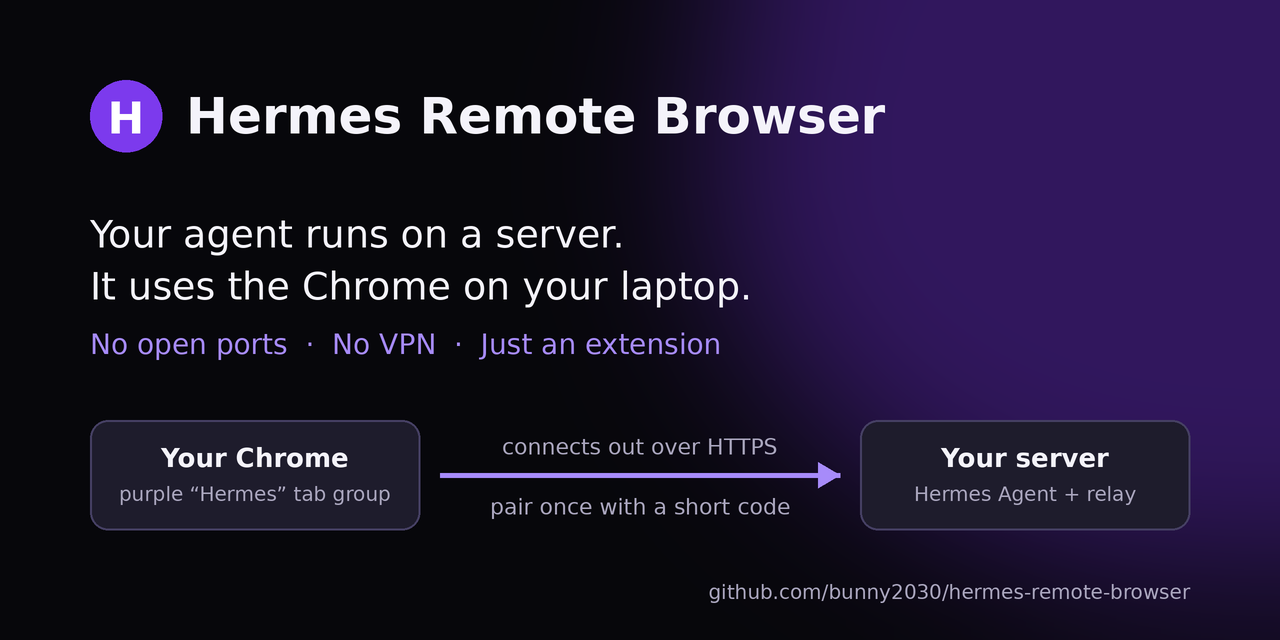
- Share tabs by moving them into the purple Hermes group. Other tabs stay out of reach.
- Switch access on yourself. It automatically switches off after your chosen interval and at browser start.
- Keep using your own browser sessions. You don't need to copy cookies to the server.
The server needs a public HTTPS hostname with websocket support. The extension currently installs through Chrome's Load unpacked flow. Page text and screenshots enter your Hermes conversation and may reach your model provider; read the security model before sharing sensitive tabs.
Quick start · Cloudflare setup · Troubleshooting · First-run test
Try it and tell us what breaks
We're looking for the first five community testers running Hermes on a server and Chrome on a separate computer. Follow the first-run checklist, then report your result. A failed setup report is useful too. Please leave out tokens, private page contents and pairing codes.
Quick start
1. Install the plugin. Tell your Hermes agent:
Install the Hermes plugin https://github.com/driftverse/hermes-remote-browser and set it up.
Or run it yourself on the server:
hermes plugins install driftverse/hermes-remote-browser --enable
Then restart Hermes. If you use the web dashboard / Hermes Desktop, restart that too. The relay starts by itself. The plugin includes a setup skill, so the agent knows how to walk you through the rest.
2. Give the relay a public HTTPS address. Point a hostname at http://localhost:9178 on the
server. With Cloudflare Tunnel, add a public hostname with service type HTTP, URL
localhost:9178. Any HTTPS reverse proxy with websocket support works.
3. Add the extension to Chrome. Download hermes-remote-browser-extension-*.zip from the
latest release, unzip it,
open chrome://extensions, switch on Developer mode, click Load unpacked, and pick the
unzipped hermes-remote-browser-extension folder. (The same files are in extension/ in this repo.)
4. Pair. Click the purple H icon, enter wss://your-hostname, and click Pair this
browser. Tell your agent "approve the browser code ABC-123" (Hermes asks you to confirm). Click
Switch on.
Done. Ask your agent to do something in your browser.
How it works
 Your computer                                 Your server
┌──────────────────────────┐                 ┌────────────────────────────────────────┐
│ Chrome                   │   wss (out)     │ reverse proxy / tunnel (HTTPS)         │
│  └ Hermes Remote Browser ├────────────────▶│  └ relay.py  127.0.0.1:9178  /ext      │
│     extension            │                 │       ▲ control.sock (owner-only)      │
│  └ purple "Hermes" tab   │                 │       │                                │
│    group = what the      │                 │  Hermes Agent ── remote_browser tool   │
│    agent can see         │                 │       (this plugin starts the relay)   │
└──────────────────────────┘                 └────────────────────────────────────────┘
- The extension dials out. Your computer opens no ports and needs no VPN client or companion program.
- The agent only sees the tabs you share. It can use tabs in a purple Hermes tab group, and the tabs it opens itself land there. Drag a tab into the group to share it. Everything else in your browser stays invisible.
- Off by default. You switch it on from the toolbar icon. It switches itself off again after 15 min / 1 h / 4 h (your choice) and at every browser start.
- Pairing without secrets. The extension shows a short code that you approve on the server. The browser then holds a random device token; the server stores only its hash.
- Password fields are off-limits. The extension refuses to read or type into them.
- No
debuggerpermission. Pages are driven withchrome.scriptingandchrome.tabs. - The relay runs itself. The plugin starts
relay.pyin the background when Hermes loads it, using Hermes's own Python (it needsaiohttp, which Hermes already has). Only one relay runs per machine, and it keeps running across Hermes restarts. Paired browsers are kept in~/.local/share/hermes-remote-browser, so reinstalling the plugin doesn't unpair them.
What the agent can do
One tool, remote_browser, with these actions:
| Action | What it does |
|---|---|
setup |
First-time checklist: relay status, port, extension folder, pairing |
status |
Is a browser connected? |
tabs |
List the tabs in the Hermes group |
open |
Open a URL in a new Hermes-group tab (or reuse one: new_tab: false / tab_id) |
snapshot |
Page title, URL, visible text and a numbered list of clickable/typeable elements |
click / type / select |
Act on an element by its number from the latest snapshot |
scroll |
up / down / top / bottom |
key |
Press a key (Enter, Escape, Tab…) on the focused element |
back |
Go back |
screenshot |
Capture the tab (brings it to the front of its window) |
close |
Close a Hermes-group tab |
pairing_requests / approve_pairing |
See and approve pairing codes (approval always asks you) |
The bundled skill remote-browser:remote-browser tells the agent how to set things up and use
the tool safely.
Requirements
- Hermes Agent with plugin support (tested on v0.22.5 on Linux; macOS should work)
- A public HTTPS hostname that forwards websockets to the relay's port
- Chrome (or another Chromium browser) 116 or newer on your computer
Managing it
Optional command-line helper (works over the relay's control socket):
install -m 755 ~/.hermes/plugins/remote-browser/bin/remote-browser ~/.local/bin/
remote-browser status          # connection, pending codes, paired browsers
remote-browser approve CODE    # approve a pairing code
remote-browser revoke ID       # unpair a browser (it switches off right away)
remote-browser logs            # relay log
Update the plugin with hermes plugins update remote-browser. To pick up a new relay.py, stop
the running relay (pkill -f remote-browser/relay.py); the next tool call starts the new one.
Configuration
Set these in the environment Hermes runs with (e.g. its service file):
| Variable | Default | Meaning |
|---|---|---|
REMOTE_BROWSER_PORT |
9178 |
Port the relay listens on (loopback only) |
REMOTE_BROWSER_HOST |
127.0.0.1 |
Address the relay listens on |
REMOTE_BROWSER_HOME |
~/.local/share/hermes-remote-browser |
Paired browsers, control socket, log |
Security model
Read this before using it with accounts that matter.
What runs on your server: one long-running background process, relay.py, started by the
plugin. It listens on 127.0.0.1:9178 (only reachable through the HTTPS address you set up) and
on an owner-only unix socket. It keeps its files in ~/.local/share/hermes-remote-browser: the
paired browsers (token hashes only), the socket and a log. It makes no outbound network calls,
runs no shell commands and stores no credentials. The extension talks only to the address you
enter.
- What the agent sees, its model provider sees. Page text and screenshots go into the conversation, and from there to whatever LLM provider your Hermes uses. Pick providers you trust.
- The gate is on your side. The switch, auto-off and the tab group are enforced in the extension, so the server can't widen them. Browsing actions don't ask for approval each time; sharing a tab is the approval.
- Pages can try to trick the agent. A malicious page can contain instructions aimed at the agent (prompt injection). Keep the Hermes group to sites you trust, and keep Hermes's own approvals on for anything risky.
- Pairing codes are 6 characters, expire after 5 minutes, at most 3 can be pending, and at most 10 can be requested per 10 minutes. Each approval through the agent asks you to confirm that exact code. An agent with shell access to the server could still call the relay's control socket directly; the relay can't stop software running as the same user.
- Tokens are 256-bit random values. The server stores only their SHA-256 hash
(
devices.json, mode 600). - Don't put an interactive login page (like Cloudflare Access) in front of the relay's hostname. The extension can't complete it. Pairing is the access control.
- Events are synthetic. Clicks and typing come from page scripts, so pages see them as scripted, not as real input. That's also why a few sites ignore them.
Limitations
- One connected browser at a time (a new connection replaces the old one).
- Some sites ignore scripted clicks/typing, and rich editors may not accept
type. screenshotbrings the agent's tab to the front of its window.- Pages Chrome protects (
chrome://, the Web Store) can't be scripted.
Related projects
Other ways to connect Hermes to a browser, which may suit you better if Hermes runs on the same computer as your browser:
- Hermes Connector: extension + local companion
- hermes-chrome: local bridge + extension
- Hermes Browser Extension: side panel
Hermes's built-in browser tools can also attach to Chrome over the DevTools port
(--remote-debugging-port).
License
MIT, see LICENSE. Not affiliated with Nous Research or Google.