CorsenAI/hermes-connector
Chrome browser extension for Hermes Agent — exact sessions, user-selected tabs, and local-first browser control.
Hermes Connector is an open-source Chrome extension that enables a local Hermes Agent to read and control specific user-selected browser tabs. It uses a version-matched companion application to route browser requests to exact Hermes profiles and sessions without using a hidden automation browser.
- Controls navigation, clicks, typing, and screenshots in attached tabs.
- Requires a version-matched companion for Windows, macOS, or Linux.
- Supports automatic Hermes Desktop discovery and side panel session management.
full readme from github
Hermes Connector — Chrome browser extension for Hermes Agent
Hermes Connector is an open-source Chrome browser extension for Hermes Agent that connects an exact Hermes profile and session to the signed-in Chrome tabs you choose. Hermes can then read and control those tabs without using a hidden automation browser or guessing which tab belongs to which task.
Install from the Chrome Web Store · Watch the complete installation and live browser-control demo · Setup guide · Choose the matching companion · 0.2.4 release details · Get support · Corsen AI
Unofficial community project by Corsen AI. Not affiliated with or endorsed by Nous Research or Google.
Current release and compatibility
The public Chrome Web Store build is 0.2.4. Install the companion only after
checking the extension version in chrome://extensions; the Chrome extension
and local companion must use exactly the same version.
Version 0.2.4 is the current public release. It adds automatic Hermes Desktop discovery: the side panel can list Desktop sessions and attach tabs without requiring a separately opened web dashboard. Its Windows companion also keeps the detached broker outside Hermes' managed virtual-environment launcher so the broker cannot block future Hermes updates. Install companion 0.2.4 after Chrome explicitly shows extension 0.2.4.
| Chrome extension | Matching companion | Protocol / default broker | Status |
|---|---|---|---|
| 0.2.4 | Companion 0.2.4 | Protocol 5 / 127.0.0.1:8767 + automatic Hermes Desktop backend discovery |
Current public Store pair |
| 0.2.3 | Companion 0.2.3 | Protocol 4 / 127.0.0.1:8766 |
Legacy released pair; use only while Chrome still shows 0.2.3 |
| 0.2.2 | Companion 0.2.2 | Protocol 4 / 127.0.0.1:8766 |
Legacy released pair; use only while Chrome still shows 0.2.2 |
| 0.2.1 | Companion 0.2.1 | Protocol 4 / 127.0.0.1:8766 |
Legacy released or sideloaded pair |
| 0.2.0 | Companion 0.2.0 | Protocol 3 / 127.0.0.1:8765 |
Legacy pair; see the disk-recovery procedure |
Do not mix versions. Check chrome://extensions before installing a companion.
The complete compatibility, upgrade, and version 0.2.0 LevelDB recovery guide
is available on the support page.

▶ Watch the complete installation and live browser-control demo
Your Hermes session, inside the Chrome you already use
Hermes Connector keeps session selection and tab attachment in Chrome's side panel. The current 0.2.4 Store pair can embed the local Hermes web dashboard or discover Hermes Desktop automatically: choose the Desktop session and attach tabs in the panel, then continue the conversation in Hermes Desktop. In both modes, the connector keeps the scope exact even when several projects, sessions, or Chrome profiles are running at the same time.
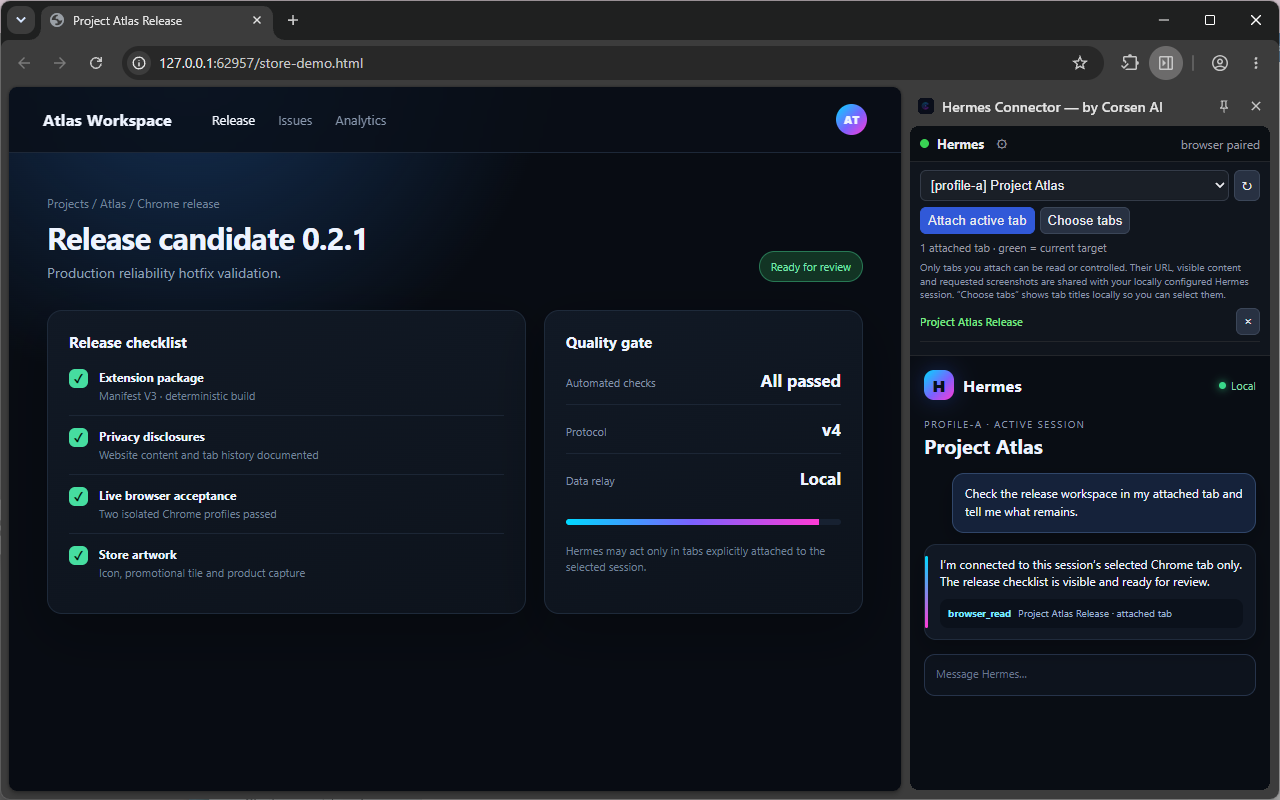
0.2.4 Desktop release:
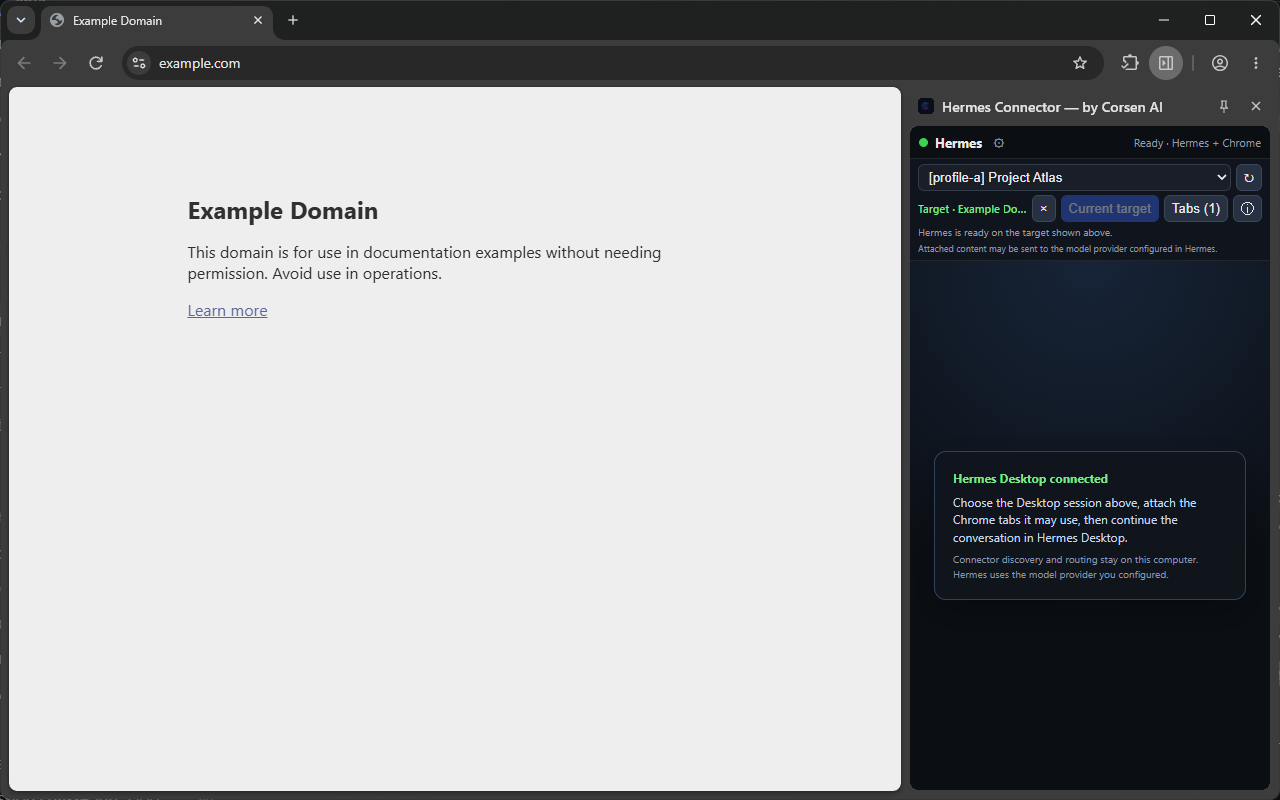
With an attached tab, Hermes can:
- inspect and read the visible page;
- navigate, click, type, scroll, hover, select, drag, and use keyboard actions;
- find text, use browser history, and take requested screenshots;
- open, list, switch, and close tabs inside that session's authorized scope;
- keep concurrent Hermes projects isolated from one another.
This is real browser control with an explicit boundary: a tab is unavailable to Hermes until you attach it. If a Hermes session has no attached target, its browser action fails visibly instead of falling back to the last active tab.
Why the routing stays precise
| You choose | Hermes Connector guarantees |
|---|---|
| A real Hermes profile and session | Every browser request is routed back to that exact session. |
| One or more Chrome tabs | Only those attached tabs can be read or controlled. |
| A named Chrome profile | Its local browser identity remains distinct from other Chrome profiles. |
| Whether to enable Trusted input | Chrome's debugger transport stays off unless you explicitly enable it. |
The result is useful for everyday browsing as well as parallel agent workflows: your authenticated websites remain available in your normal Chrome profile, while each Hermes task receives only the tabs assigned to it.
Quick start
You need a local Hermes Agent installation, desktop Chrome 120 or newer, and the small Hermes Connector companion. Version 0.2.4 can use Hermes Desktop directly or the local web dashboard. The extension's first-run screen detects your operating system, checks whether the companion is already reachable, and shows the appropriate Windows, macOS, or Linux instructions.
1. Install the Chrome extension
Install Hermes Connector from the Chrome Web Store,
check the version shown in chrome://extensions, then click its toolbar
icon or press Ctrl+Shift+H (Command+Shift+H on macOS) to open the side panel.
2. Let the extension check the companion
On first launch, Hermes Connector checks only your computer's loopback address. It does not send this check to the internet.
- If the panel says the matching companion is already reachable, do not reinstall it.
- Otherwise, use the panel's Download companion button and extract the ZIP.
Use the compatibility table above to download the companion whose version exactly matches the extension version shown by Chrome.
3. Install the companion once
Windows: double-click Install Hermes Connector.cmd in the extracted
folder, or run .\install.ps1 from PowerShell. Keep the result window open so
you can copy the pairing code.
macOS or Linux: open a terminal in the extracted folder and run:
./install.sh
Fully quit and reopen Hermes Desktop, or restart any Hermes dashboard, gateway, or chat process that was already running. The installer adds the connector plugin to the shared Hermes home and existing named profiles, then prints one private pairing code. Re-run the installer after creating a new named Hermes profile.
4. Pair Chrome and choose the tabs
In the Hermes Connector side panel:
- Give this Chrome profile a recognizable name.
- Paste the pairing code printed by the installer and save.
- Select the Hermes profile and session you want to use.
- Choose Attach active tab or Choose tabs.
- Ask Hermes to work with the selected page. In 0.2.4 Desktop mode, continue the conversation in Hermes Desktop while the panel keeps the session and tab controls visible.
For example:
Read the release checklist in my attached tab and tell me what remains.
or:
Click the requested action in my attached tab, then explain what changed.
Tab titles and URLs are displayed locally when you open Choose tabs so that you can make the selection yourself.
Why a companion is required
A Chrome extension cannot register browser tools directly inside a local Hermes installation. The companion installs that Hermes-side plugin and runs the authenticated loopback broker used by the extension. It is bundled in the public release archive and does not create a Corsen AI cloud relay.
Hermes profile and session
  -> Hermes Connector companion
  -> authenticated broker on 127.0.0.1:8767
  -> exact local Chrome profile identity
  -> explicitly attached tabs
  -> requested browser action
Chrome automatically updates the Store extension. It cannot update a local companion, so after an extension version change you must install the companion with exactly the same version and fully restart Hermes Desktop or the running Hermes services. If you remove and reinstall the extension, or add it to another Chrome profile, the first-run check can detect the local broker but cannot prove its version before pairing; follow the displayed exact-version installer link. Reinstalling the matching companion preserves the existing pairing code.
Privacy and security
Hermes Connector is designed to keep authority visible and local:
- no Corsen AI relay, account, advertising, analytics, tracking, or telemetry;
- loopback-only connector transport on
127.0.0.1; - explicit tab attachment and exact session-to-tab authorization;
- separate persistent identities for separate Chrome profiles;
- role-bound mutual HMAC authentication without sending the pairing secret;
- sensitive form-field and URL-secret redaction in browser snapshots;
- bounded protocol messages and fail-closed routing;
- Trusted input disabled by default, with Chrome's debugger banner visible when you enable it for reliable native input or dialog handling.
Page content is sent to the user's local Hermes installation. A remote model provider receives it only if the user has configured Hermes to use that provider. Attach only tabs you are comfortable sharing with that configuration.
Read the full privacy policy, product specification, and acceptance gates.
Project structure
extension/: reviewable Manifest V3 Chrome extension.hermes-plugin/: cross-platform Hermes companion and local broker.scripts/: installation, packaging, and deterministic release tooling.tests/: routing, installer, security, UI-module, and live-browser tests.docs/: product contract, architecture, setup, and release acceptance gates.store/: Chrome Web Store copy and approved visual assets.
Build and verify
The normal Store installation does not require Developer mode. The following commands are only for contributors and release verification.
Run the isolated test gate:
& "$env:LOCALAPPDATA\hermes\hermes-agent\venv\Scripts\python.exe" tests\run_all.py
Run live extension acceptance with Chromium or Chrome for Testing:
& "$env:LOCALAPPDATA\hermes\hermes-agent\venv\Scripts\python.exe" tests\e2e_chromium.py
Run the two-profile isolation and ownership-transfer acceptance test:
& "$env:LOCALAPPDATA\hermes\hermes-agent\venv\Scripts\python.exe" tests\e2e_multi_browser.py
For a release, scripts/package.ps1 refuses an uncommitted source tree, runs
the fast tests, produces deterministic allowlisted ZIPs, and records SHA-256
hashes in dist/release-<version>.json. Explicit -AllowDirty development
builds are isolated under dist/dev/ and must not be uploaded to the Store.
Support and transparency
- Chrome Web Store listing
- Setup and downloads
- Version compatibility, upgrade, and troubleshooting
- Privacy policy
- Source code and releases
- Corsen AI official website
Hermes Connector is released under the MIT License.