electricsheephq/hermes-cloud-file-manager
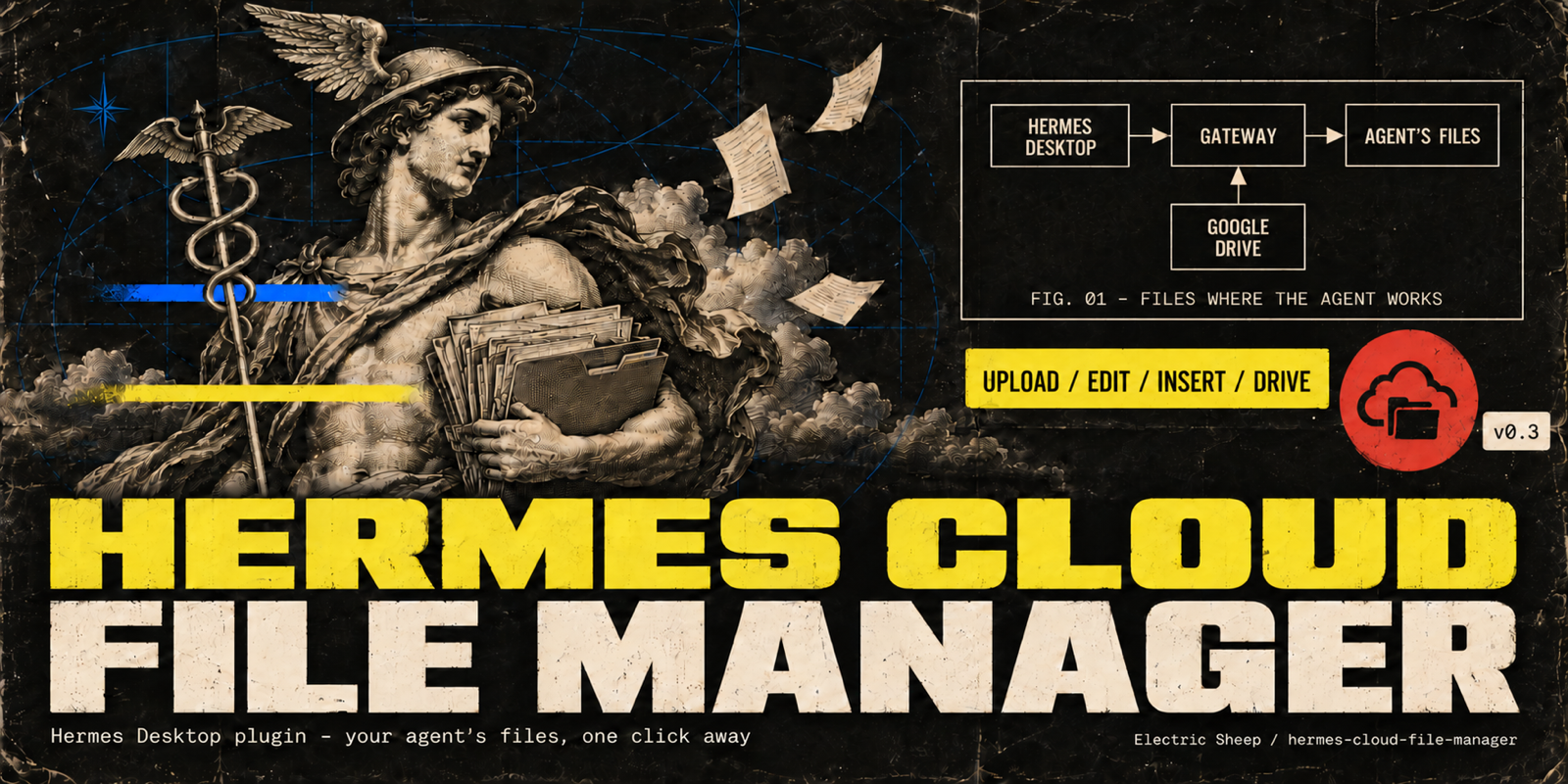
Your agent's server files, as easy as local, in Hermes Desktop: drag in folders, preview, review each edit before Save.
Cloud File Manager adds a Cloud Files view in Hermes Desktop for browsing, searching, uploading, downloading, and previewing files on the machine where the agent runs. Users can edit Markdown and text files with a review step before saving, and optionally browse Google Drive and import files to the agent’s machine.
- Upload files and folders while keeping their folder structure.
- Preview images, PDFs, and code and data files read-only.
- Agent replies can include file cards with open and download options.
full readme from github
Cloud File Manager for Hermes
Your agent's server files, as easy as local, in Hermes Desktop: drag in folders, preview, review each edit before Save.
https://github.com/user-attachments/assets/74c1e72d-5abc-4399-bb18-fdfaa8d0d888




hermes plugins install electricsheephq/hermes-cloud-file-manager --enable
Run it on the machine your agent's gateway runs on. It needs no API keys; if it asks to install Node dependencies, answer No. Then add the desktop half in Hermes Desktop on each computer that uses it: in Capabilities → Plugins, choose + Add to this Agent on the Cloud File Manager catalog entry, and switch on Desktop on the plugin's card. On Hermes 0.21.5 and evaOS, restart the agent's gateway once. Other ways to install are under Install.
Try it
- Install it as above. Cloud Files appears in Hermes Desktop's sidebar.
- Drag a folder with a text file in it from your computer onto the Cloud Files page. Then ask the agent in a Desktop chat: "Summarise notes.txt into a short note and hand it to me."
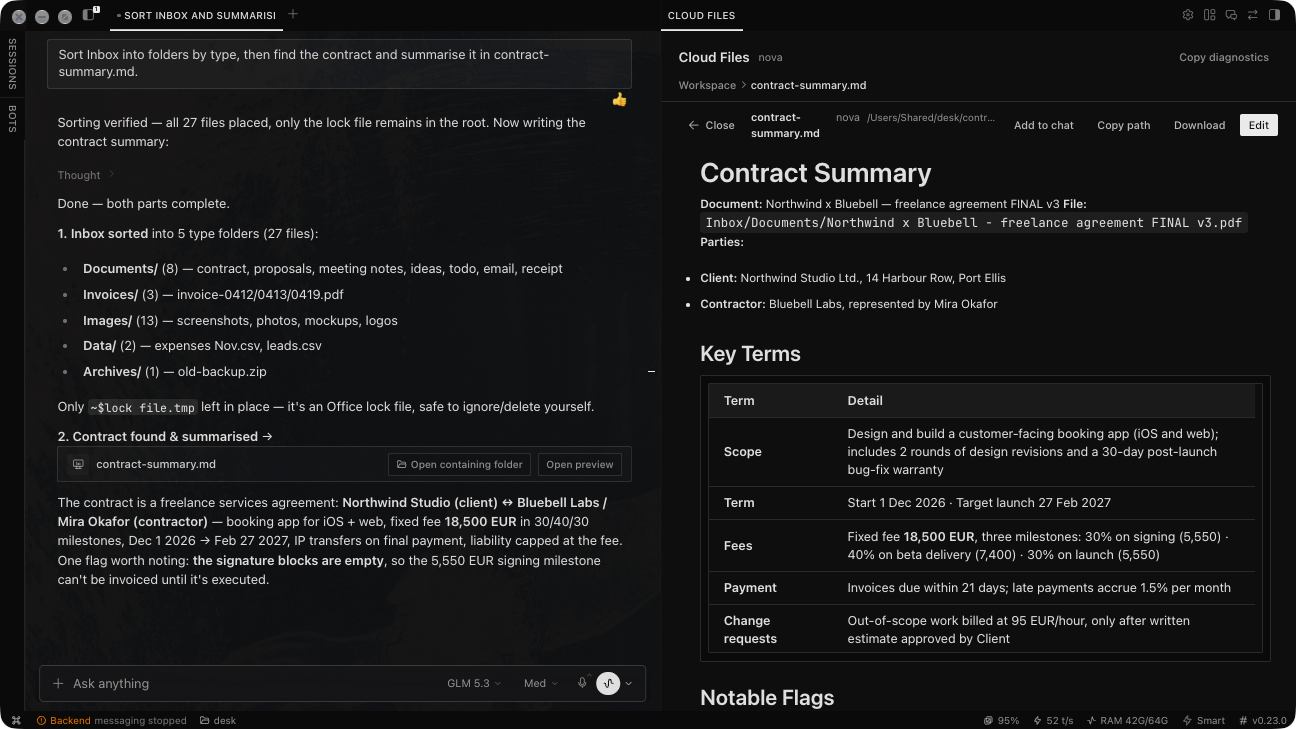
- Files the agent writes are marked New or Updated as it works, and its reply ends with a card for the file: Open, Preview, Download or Add to chat (cards need Hermes 0.21.6 or newer; on 0.21.5, open the note in Cloud Files). Edit a Markdown file and you review your changes before Save.
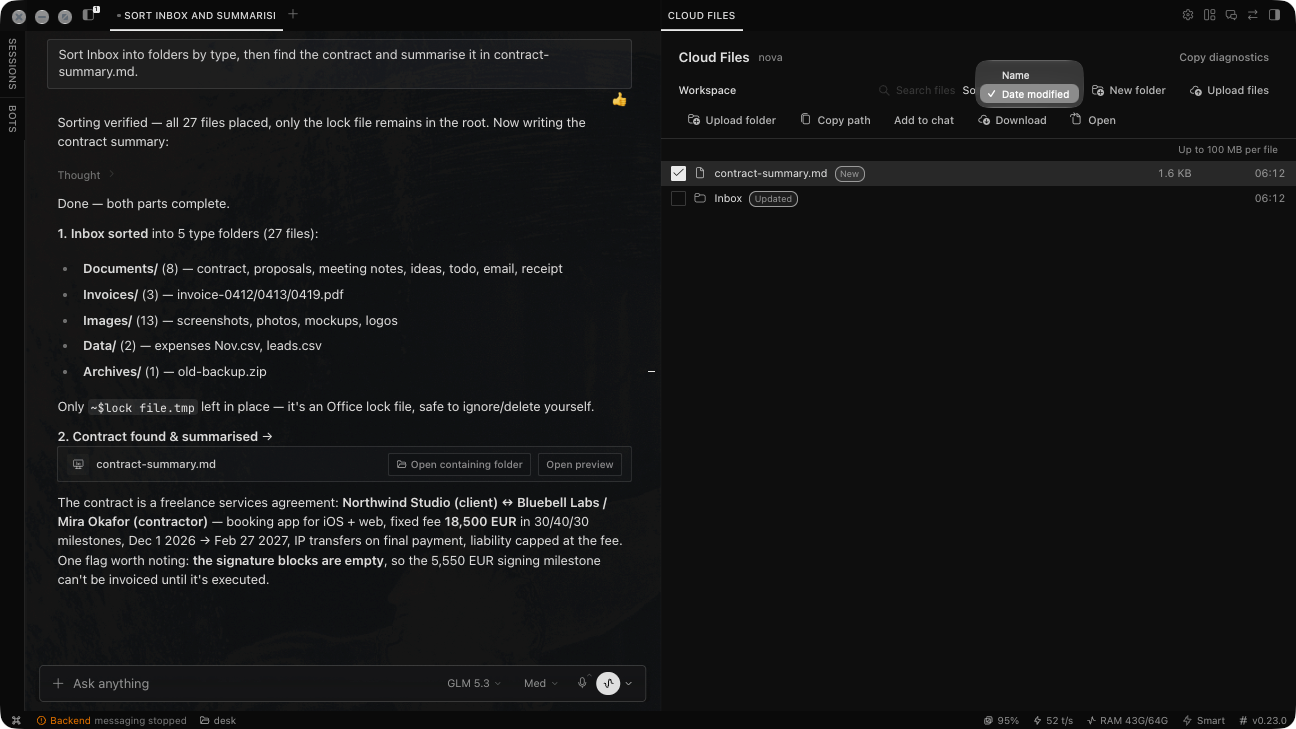
When your Hermes agent runs somewhere else — a VPS, a home server, a hosted agent — its files live on that machine, not yours. Cloud File Manager puts that machine's files one click away in Hermes Desktop.
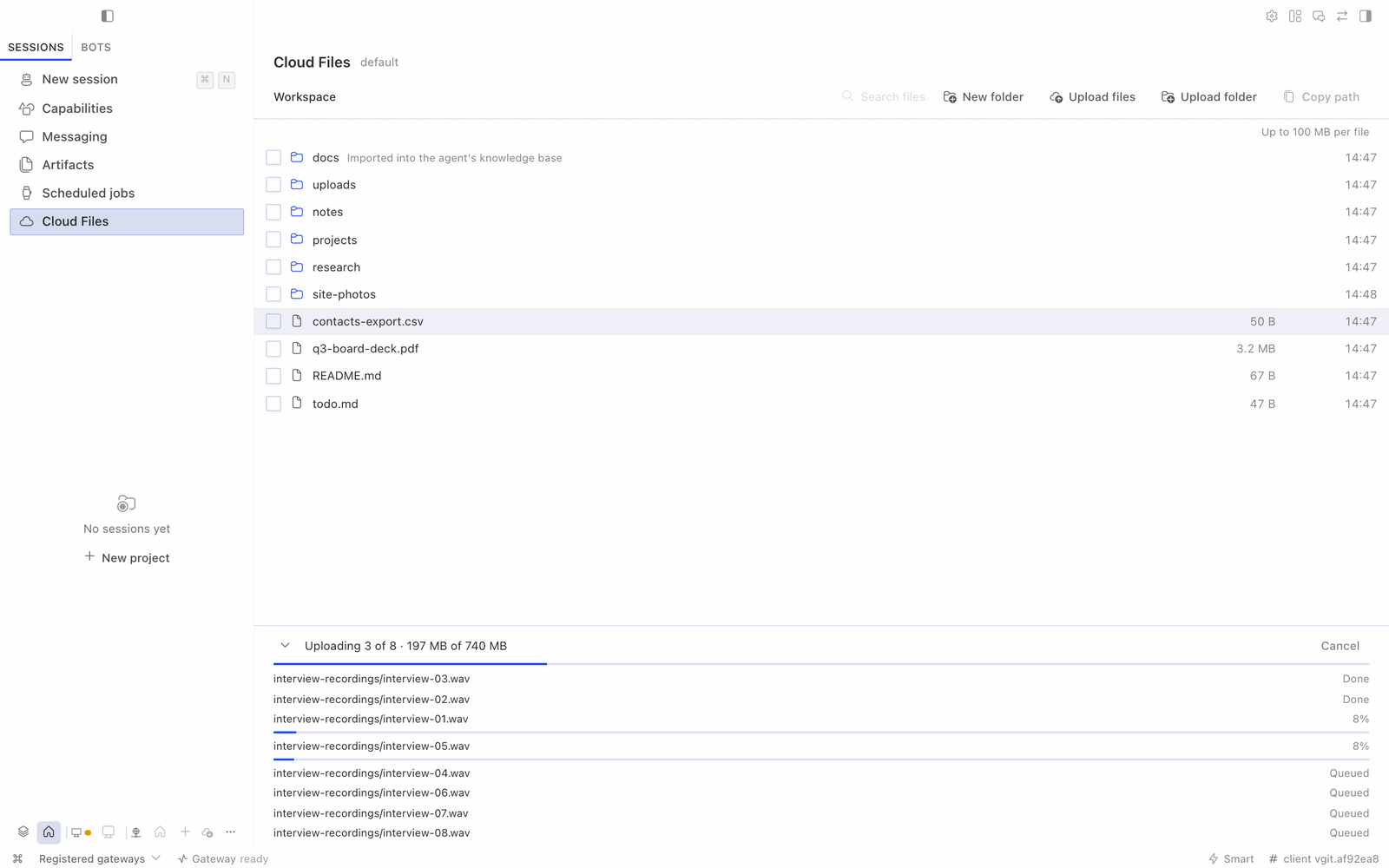
- Cloud Files in the sidebar: browse the agent's folders, search by name, create folders, and upload files or whole folders by drag-and-drop or from the toolbar. Folder structure is kept, large files go up in chunks (a brief network drop is retried automatically; a file that still fails gets a Retry button), and uploads never overwrite — a name clash keeps both files. Show on a finished upload opens its folder at the file. While the page is open, files the agent writes, moves or deletes show up within about a second of each tool step that changes files, for that agent only, also when its chat is in another Desktop window (a file edited in place can show its old size for a few seconds). Files the agent adds or changes are marked New or Updated since you opened the folder (in a folder too big to load at once, only updates to files already listed).
- Download one file to your computer: select it and choose Download, or use Download while viewing it. The file list also works from the keyboard: arrow keys, Home and End, Page Up and Page Down, Enter to open, Space to select, and Alt+Up for the parent folder.
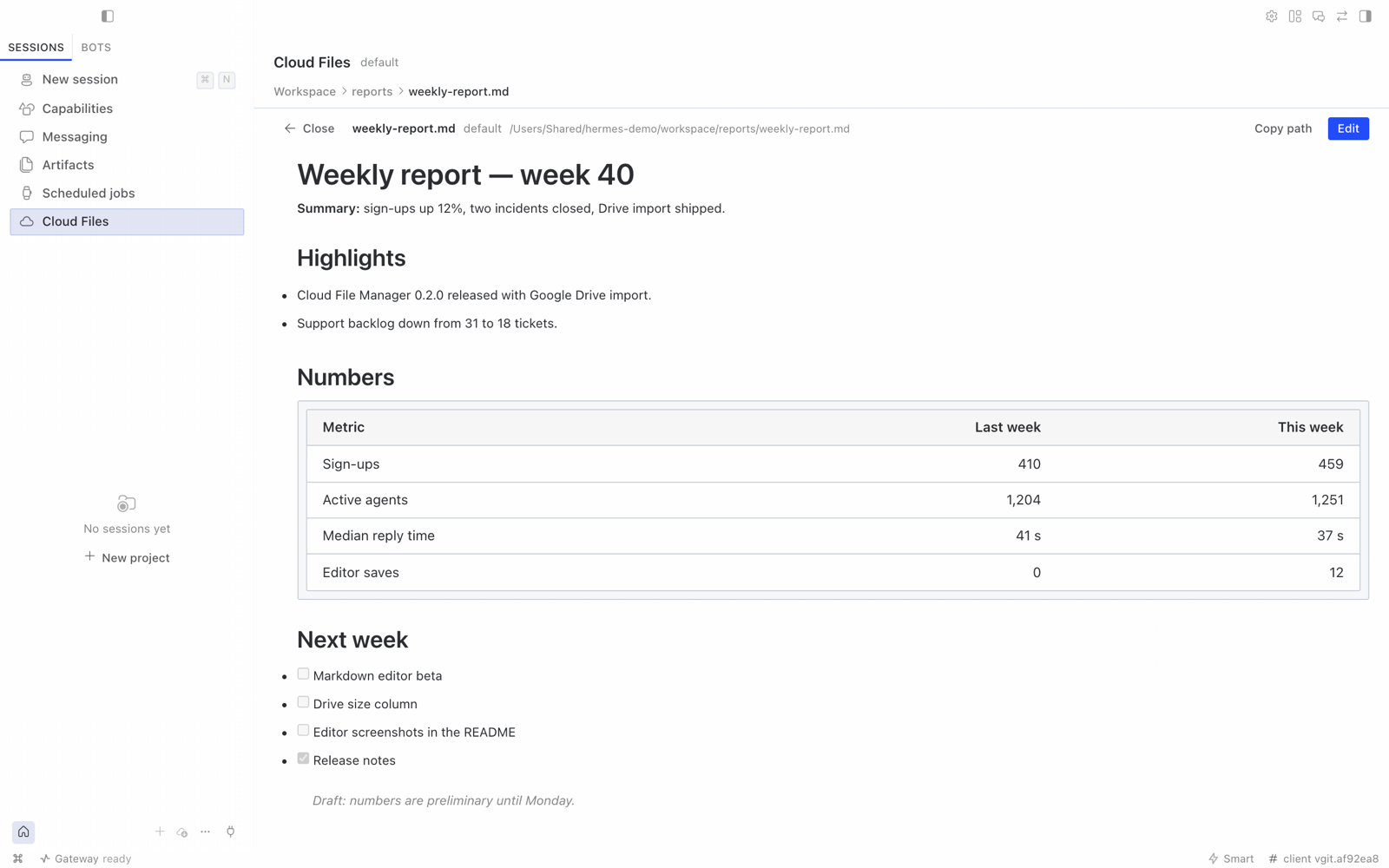
- Open and edit Markdown and text files: view first, edit on purpose, review the changes, then save. Nothing is saved until you choose Save.
- Preview images, PDFs, and code and data files (JSON, YAML, CSV as a table, logs, source code), read-only.
- Drag files into the chat from the Cloud Files page, like Hermes's own Files tree: each becomes a file reference for the agent. Right-click Cloud Files in the sidebar and choose Open in split to keep it beside the chat.
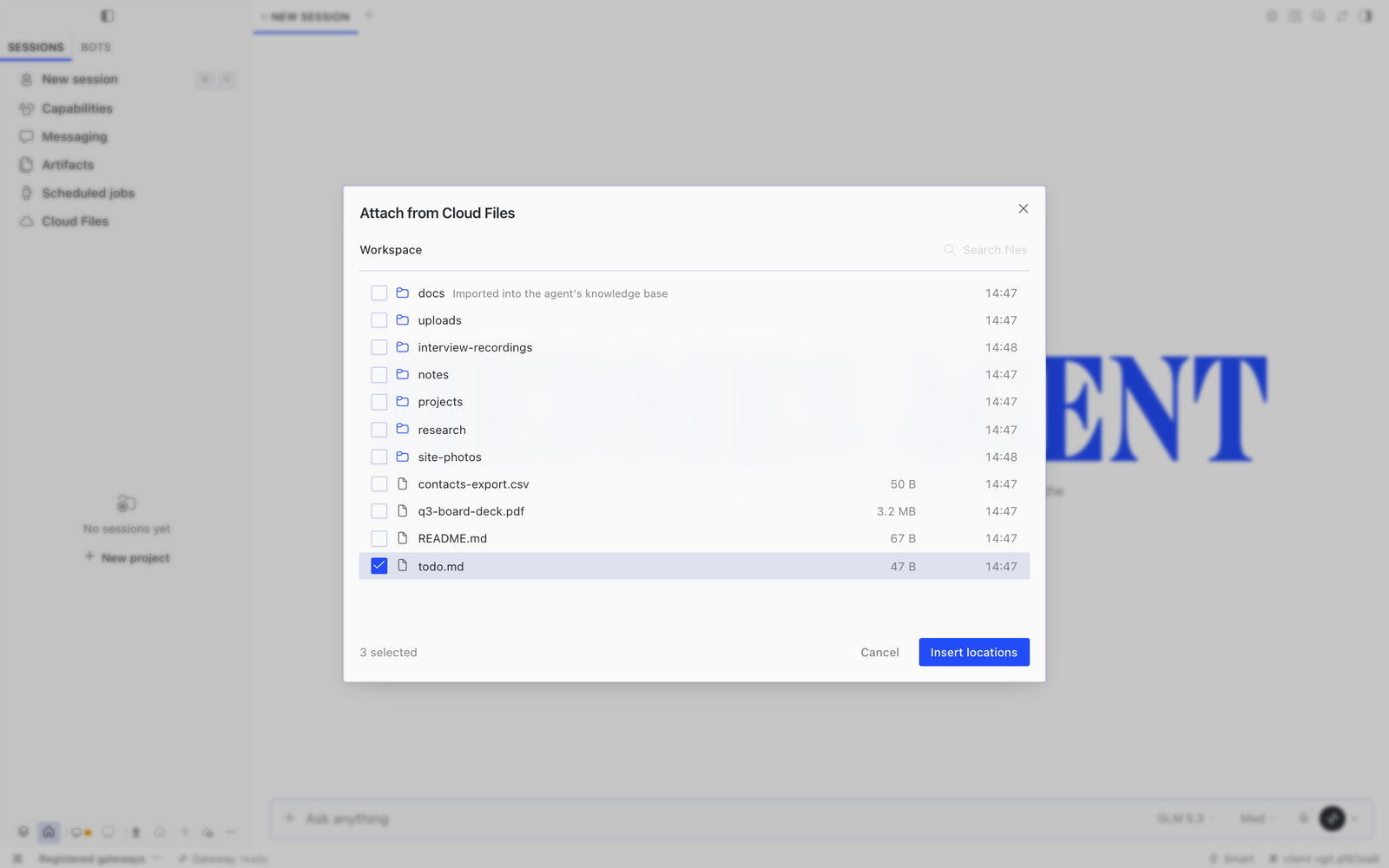
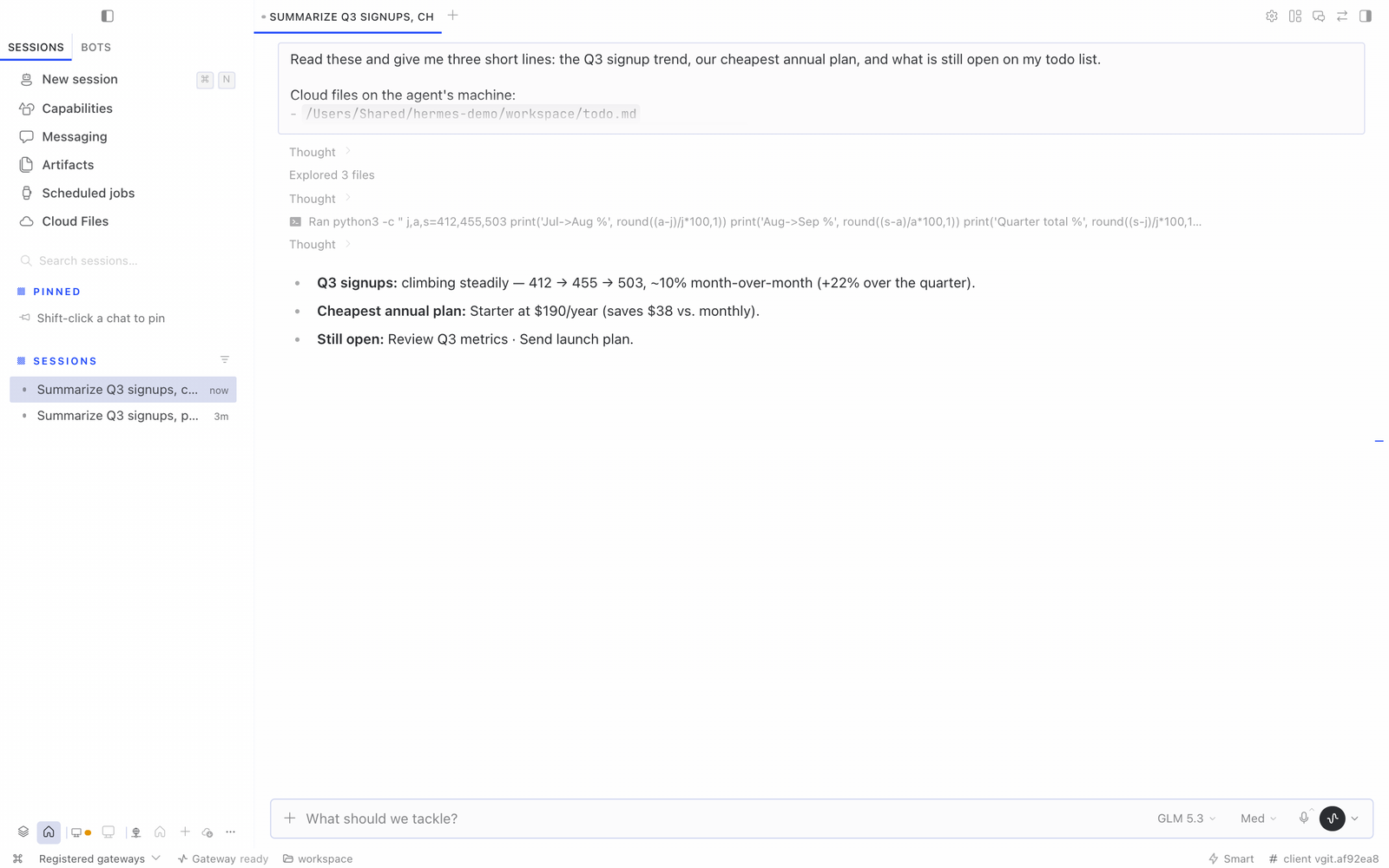
- Cloud in the chat + menu: pick files already on the agent's machine and drop their locations into your message. Nothing is uploaded again and nothing is copied into the chat; the agent opens the files where they are with its own tools.
- Google Drive (optional): if the agent is signed in to Google through its
google-workspaceskill, browse and search its Drive and import files onto the agent's machine, from the page or from + → Google Drive. - Files the agent hands you show up as cards in its reply: name, folder, size and date, with Open, Preview, Download and Add to chat. In Desktop chats the agent knows which folders you see in Cloud Files and how to hand a file over this way. After an upload, Add to chat gives the agent what you just dropped, under the names it was saved as.
How it differs from Hermes Desktop's Files tree
Hermes Desktop's own Files tree shows the current chat's working folder, refreshes when the agent runs a tool, previews files (PDFs too, also on a remote agent) and edits text files. Cloud File Manager adds what that tree does not do:
- Puts your files on the agent's machine. Open a folder in Cloud Files and drop files or whole folders into it, even when the agent runs on another server. A name clash keeps both files.
- Marks what changed in any folder. New and Updated marks track changes since you opened the folder, inside or outside a git repository (a folder too big to load at once gets Updated marks only). The Files tree colours git changes only.
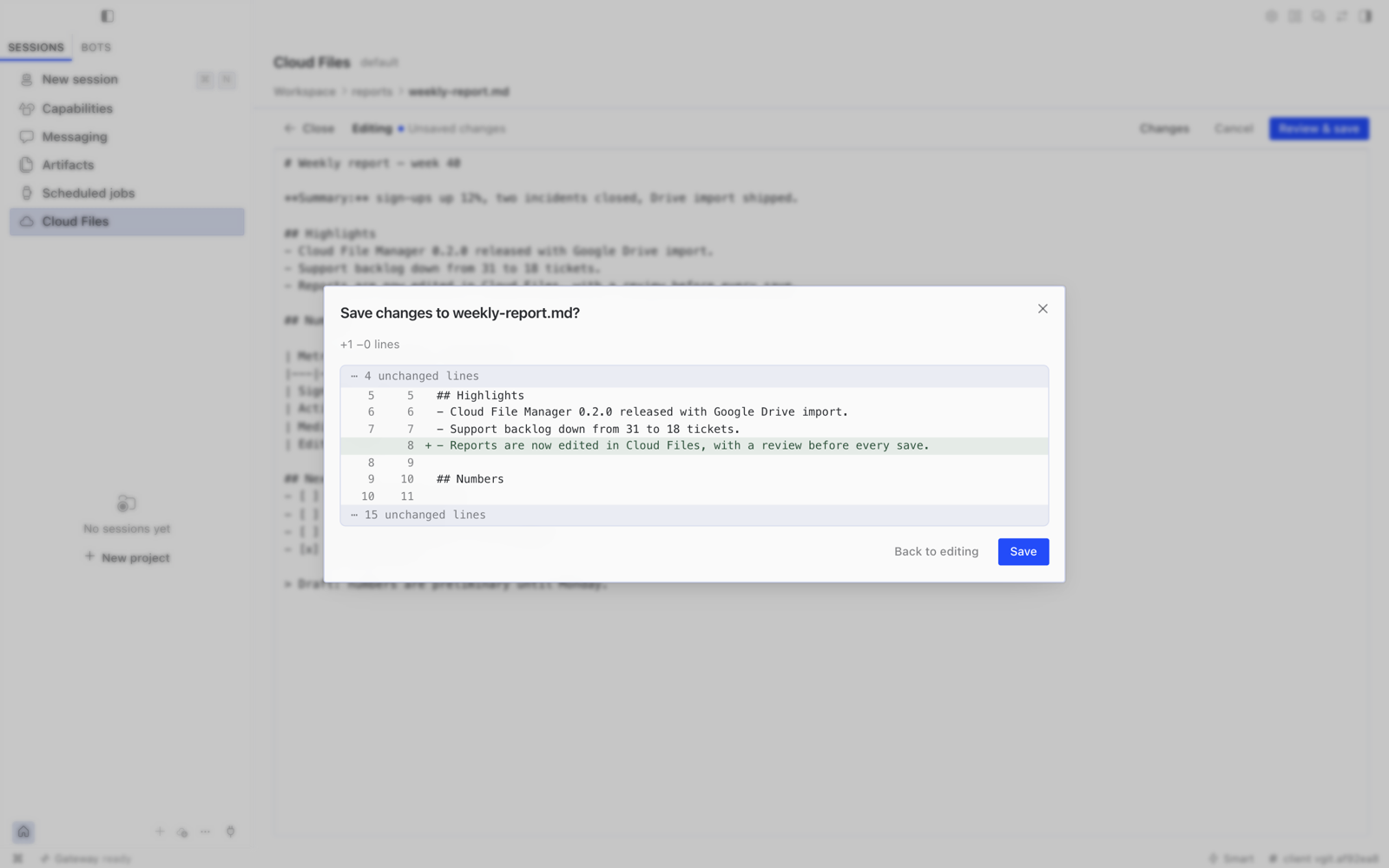
- Reviews your edits before Save. After you edit a Markdown or text file, a line-by-line diff of your changes comes before Save, so you approve exactly what gets written.
- Shows the folders you choose in Settings (by default the agent's working folder), whichever chat is open, and imports files from the agent's Google Drive.
- The agent hands you files as cards in its reply, which open straight in Cloud Files.
It never deletes, renames or moves your files itself. Ask agent… writes that request into the chat for you to finish and send.
Requirements
- Hermes 0.21.5 or newer with Hermes Desktop, connected to an agent (local, remote with a token, or remote with sign-in).
- The agent's terminal runs locally on the gateway machine (
terminal.backend: local, the default). Agents that run their tools in Docker, over SSH or in another sandbox see a different filesystem; the tab says so instead of showing the wrong files.
Install
Cloud File Manager has two halves in one package: a small API that runs on the agent's gateway and the screens that run in Hermes Desktop.
Cloud File Manager is in the Hermes plugin catalog. Installing from the catalog gets the reviewed release, pinned to its commit.
From Hermes Desktop (recommended):
- Open Capabilities → Plugins, choose Browse under Plugin catalog, find Cloud File Manager, and choose + Add to this Agent. Desktop installs the agent half into the connected agent and the desktop half on this computer.
- On Hermes 0.21.6 or later, the agent picks the plugin up by itself within about a minute. On Hermes 0.21.5 and on evaOS, restart the agent's gateway once.
- In Capabilities → Plugins, open Cloud File Manager and switch on Desktop. Desktop plugins stay off until you turn them on.
The Cloud Files row appears in the sidebar, and Cloud appears in the chat + menu.
From the command line on the gateway machine:
hermes plugins install electricsheephq/hermes-cloud-file-manager --enable
# on Hermes 0.21.5, restart the gateway (or your hermes dashboard service) so the API is mounted
This installs the latest release from this repository; its main branch only moves to a tagged release. Installing
the catalog release by name (hermes plugins install hermes-cloud-file-manager --enable, Hermes 0.21.6 or later)
gets the reviewed catalog pin instead, which can be a release behind.
If the installer asks whether to install Node dependencies, answer No. The plugin ships prebuilt, and its
package.json holds only build and test tools, so a yes downloads about 100 MB that the plugin never uses.
Then add the desktop half on each computer that uses it: in Capabilities → Plugins, choose + Add to this Agent on the catalog entry, and switch on Desktop on the plugin's card.
Install from Git in Desktop (Capabilities → Plugins → Install from Git with
https://github.com/electricsheephq/hermes-cloud-file-manager) installs the same release as the command above.
Updating: a catalog install offers Update to … on the plugin's card in Capabilities → Plugins when a new release is pinned. After an update, restart the agent's gateway and reopen Hermes.
The sidebar row and the + → Cloud entry only appear for agents that have the gateway half enabled, so installing the desktop half is harmless for your other agents.
Using it
Files from the agent: in a Desktop chat, ask for something the agent saves as a file ("summarise the contract into a note") and its reply ends with a card for the file. Open shows it in its folder in Cloud Files, Preview opens it there, Download saves it to this computer, and Add to chat puts it in this chat's message box. A card for a file outside the shown folders, or one that's gone, says so instead. The agent learns about cards from a short note the plugin adds to its instructions in Desktop chats only (Telegram, the terminal and other places get nothing, since they can't show the card); the note names the folders shown in Cloud Files.
What changed: New and Updated marks show changes since you first opened a folder in Cloud Files or the + → Cloud picker, and stay when you open a file or a subfolder and come back; partly loaded folders only mark updates to files already listed. The marks compare modification times, so a change by anyone (the agent, an upload, another program) counts, and a file whose date was set back is missed.
Upload: drag files or folders anywhere onto the Cloud Files page, or use Upload files / Upload folder. Progress, retries and failures show in the drawer at the bottom; the batch keeps going if you leave the page. Switching to another agent mid-upload pauses the batch until you switch back — files never land on the wrong machine.
Find: type in Search files (name contains, or a glob such as
*.pdf) to search the folder you are in and its subfolders. Search skips.git,node_modules,__pycache__,.venv,venv,.tox,.mypy_cacheand.cachefolders. On a very large folder, search stops after 5 seconds and says that some matches may be missing; open a subfolder to search inside it.Sort: choose Name or Date modified in the toolbar of Cloud Files or the + → Cloud picker. Date modified lists the open folder's files and folders together, newest first; in a folder with more than 20,000 entries, the order covers the first 20,000 scanned. Search results keep their own order, so Sort is off while you search. Date modified needs version 0.5.0 or later on the agent too; on an older agent it is disabled with a hint.
Read and edit Markdown: double-click a
.md,.markdownor.txtfile (or select it and choose Open). It opens read-only, rendered like chat. Choose Edit to change the source, Changes to see your edits line by line, and Review & save to check the diff before Save. Nothing is written until you press Save in that review:- no autosave, and ⌘S only opens the review;
- closing or moving away with unsaved edits asks first;
- if you go to another page, your unsaved draft is kept in memory until you come back. It is lost if Hermes quits.
If the file changed on the agent's machine after you opened it (for example, the agent edited it), Save is refused. You can then compare with their version and save knowingly, or copy your text. An open file stays tied to the agent you opened it on; switch back to that agent to save.
Preview other files: double-click an image (PNG, JPEG, GIF, WebP, BMP, ICO, SVG), a PDF, or a code or data file (JSON, YAML, TOML, CSV/TSV, logs, XML, HTML, CSS and most source languages), or select it and choose Open. It opens read-only, with Copy path and Download. CSV and TSV files show as a table; Show as text shows the raw file. HTML and SVG are never run: HTML shows as text and SVG as an image.
Drag into the chat: drag a file or folder row (or a selection) from the Cloud Files page into a chat. It becomes the same
@file:/@folder:reference that Hermes's own Files tree makes. Hermes includes the contents of a file in the agent's working folder in your message; a file elsewhere is passed by its location, with a note that it is outside the working folder. Cloud Files refuses the drag when the chat in focus belongs to a different agent than the files. Add to chat in the toolbar (or while viewing a file) does the same without dragging, into the chat beside Cloud Files. The + → Cloud picker still inserts locations only, exactly as before.Known issue: in a split layout with two agents' chats side by side, a drag started while one agent's chat has focus can be dropped into the other agent's chat. The reference then names a path on the wrong machine (no file moves between agents). Check that the chat and Cloud Files show the same agent, then use Add to chat, or click into the target chat before you drag (#55).
- Ask the agent to rename, move or delete: select files and choose Ask agent… → Rename… (one file or folder at a time), Move… or Delete…. Cloud Files writes the request, with the files, into the chat box; finish it (the new name or folder) and send it yourself. Nothing is sent, and Cloud Files changes nothing; the agent does the work if you ask it to.
- Share with the agent: select files and Copy path, or in any chat press + → Cloud, tick files in any folders, and Insert locations. The message gets a short list of absolute paths the agent can open. If you switch chats or agents while the picker is open, it offers Copy locations instead of inserting, so locations don't land in a chat you switched to.
Google Drive (optional)
If the agent can already use Google Drive through its google-workspace skill, Cloud File Manager can bring
files from that Drive onto the agent's machine:
- On the Cloud Files page: choose Google Drive in the folder menu. Browse or search the agent's Drive, tick files, and choose Import to Cloud Files.
- In a chat: choose + → Google Drive, tick files, and choose Import and insert. The files are imported, then their locations go into your message, exactly like + → Cloud.
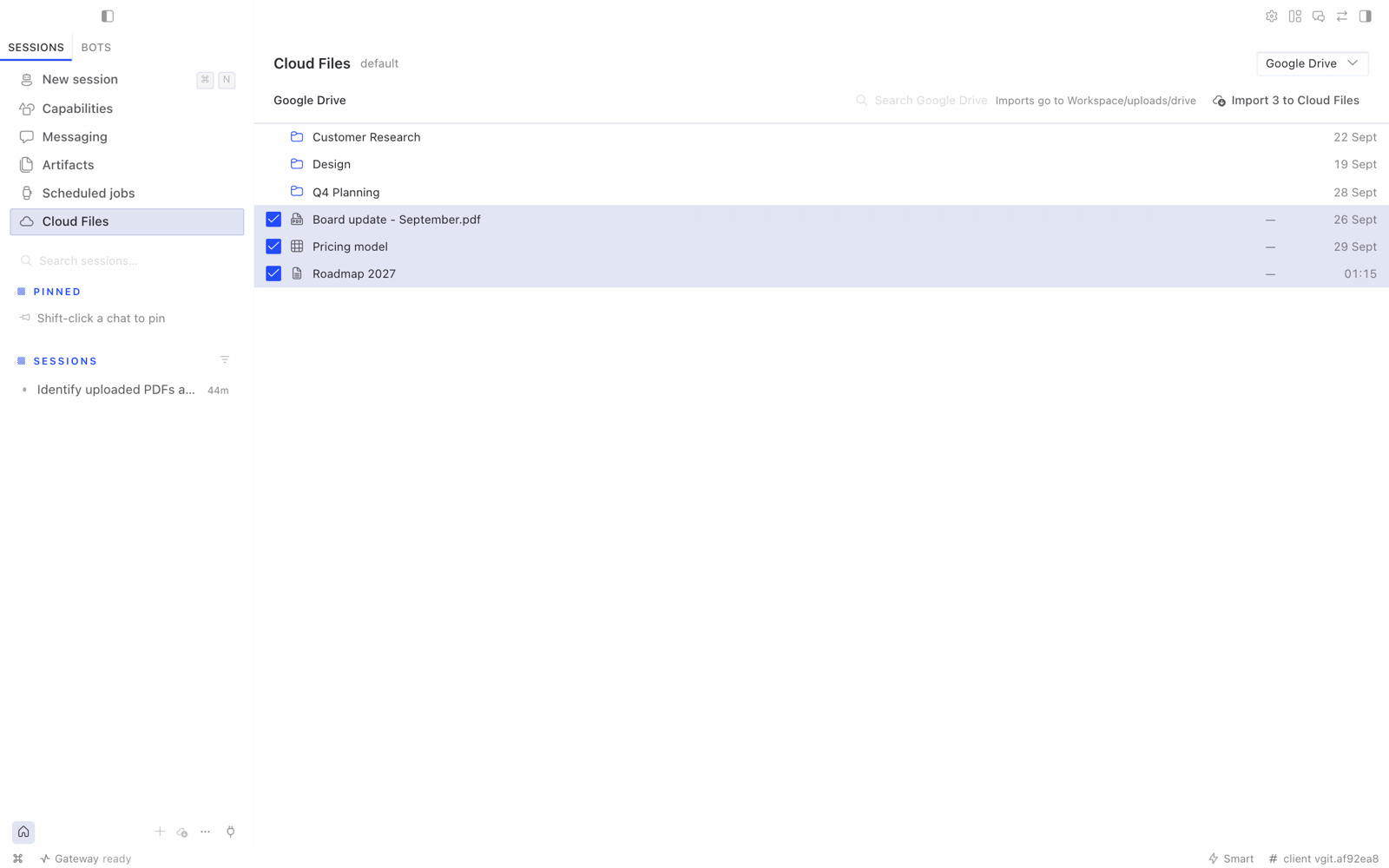
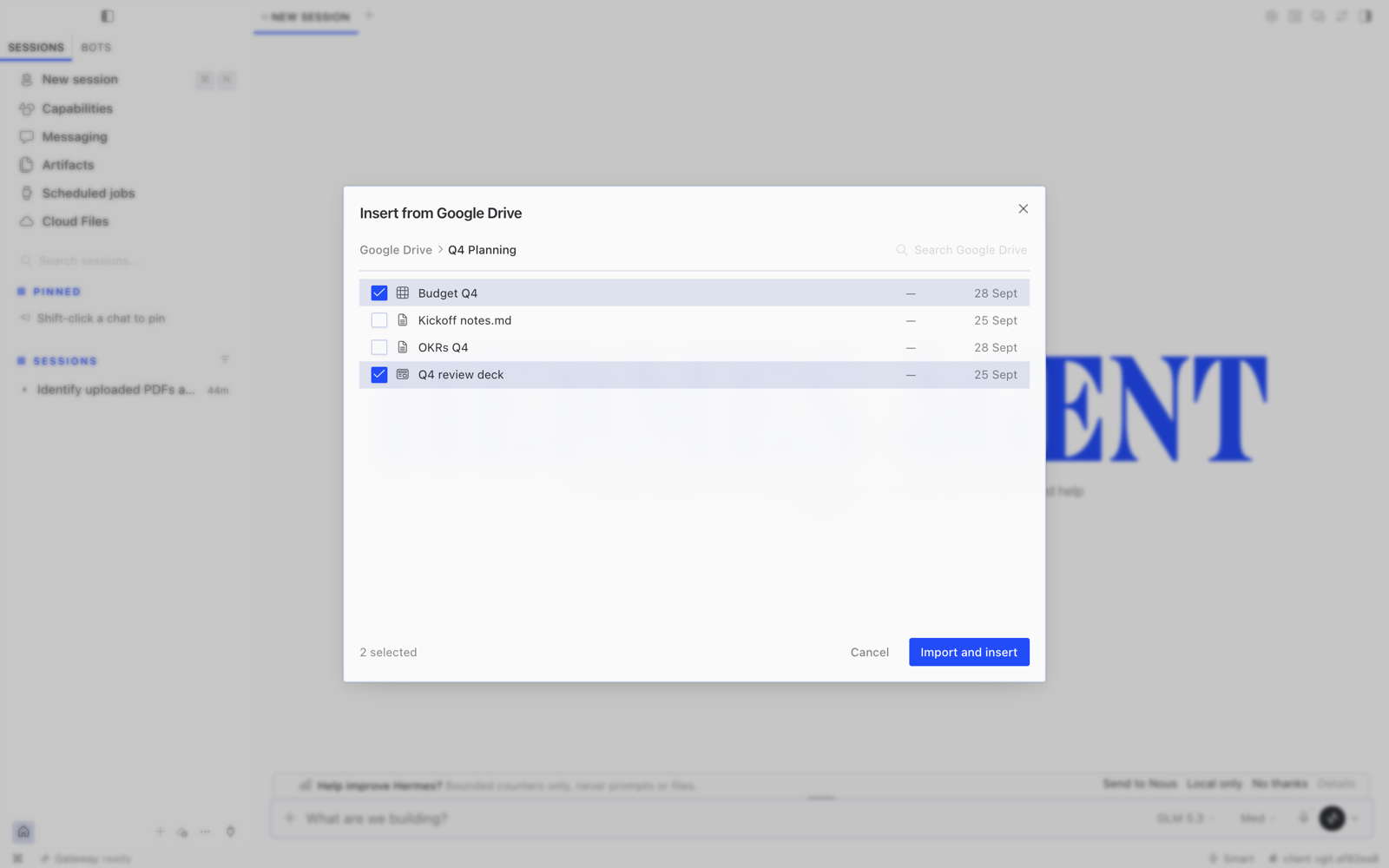
On the Cloud Files page, imports land in the folder you were in before switching to Google Drive; from the
+ → Google Drive picker they land in uploads/drive/ in the first shown folder. One file at a time. Google Docs and Slides arrive as
PDF, Sheets as CSV and Drawings as PNG; other files arrive as they are. A name clash keeps both files, and
max_file_mb applies. The Drive list works from the keyboard like the Cloud list: arrow keys, Home and End, Page Up and Page Down, Space
or Enter, and Backspace for the parent folder.
Setup: sign the agent in to Google through its google-workspace skill, with Drive access. Follow the
skill's own setup, or ask the agent to do it. Within about a minute, Google Drive appears for that agent.
For agents without it, nothing extra is shown.
What it can and can't do:
- It is read-only toward Google Drive. It only lists, searches and downloads; it never uploads, edits, shares or deletes anything there.
- It works through the agent's own skill. Cloud File Manager never reads the Google token and never installs anything.
- It runs the skill's scripts from
skills/productivity/google-workspace/scriptsin the agent's Hermes home, else from the copy bundled with Hermes. It passes them only the environment they need (paths, locale, proxy and CA-bundle settings), never the agent's keys or tokens. - It uses the Google account the agent is signed in to, so whoever can use the agent can import from that Drive.
Settings
All optional. Change them in Hermes Desktop: Settings → Plugins → Cloud File Manager on Hermes 0.21.6 or later, or the plugin's row in Capabilities → Plugins on Hermes 0.21.5 and evaOS. Changes apply on the next request; no restart is needed.
Without Desktop, set them under plugins.entries.hermes-cloud-file-manager.settings in the agent's config.yaml:
| Setting | Label in Desktop | Default | Meaning |
|---|---|---|---|
roots |
Folders to show | [] |
Absolute folders to show. Empty means the agent's own working folder (terminal.cwd), else the gateway user's home. If none of the listed folders can be shown, Cloud Files says so and links to these settings. |
folder_notes |
Folder notes | {} |
A short note per top-level folder, e.g. {"docs": "Imported into the agent's knowledge base"}. |
max_file_mb |
Largest upload (MiB) | 100 |
Largest single file accepted, in MiB. Bigger files are refused before anything is sent. Decimals are rounded down; a value under 1 falls back to 100. |
Security model
- The plugin adds no login, tokens or permission layer of its own. Desktop reaches it through the gateway's existing authenticated plugin channel, so it is exactly as private as your gateway.
- Every path is confined to the configured folders.
- Names are checked for traversal and non-portable characters.
- Symlinks that point outside the shown folders are not followed. An upload never writes its final file through a link.
- A listing may show such a link as not openable, with the link's own size and date. The plugin never opens its target or shows the target's size or date; it only checks where the link points (the target's path and identity).
- The agent's Hermes home (its settings and API keys) can never be listed, read or written, even when it sits
inside a shown folder. The exception is a folder inside it that the agent is set up to work in (
roots,terminal.cwd, or the Dockerworkspace/folder); see SECURITY.md. - When the shown folder is the gateway user's home, hidden top-level entries (
.ssh,.config, …) are hidden and refused.
- Uploads never overwrite, rename or delete existing files. There is no delete action: it never deletes your files. (Stale temporary
files and folders with the plugin's reserved
.cfm-…partand.cfm-…dirnames are cleaned up once they are more than 24 hours old, the next time an upload or Drive import starts in that folder; at most once an hour per folder.) - Only Save in the editor overwrites, only the file you opened, and only if it has not changed since you opened it. See SECURITY.md for the accepted race with writers outside this process.
- Everyone who can use the agent can see its files — the same access the agent itself has. That includes previews: any image, PDF, or code or data file in the shown folders can be previewed, including configuration files you keep there. The agent's Hermes home stays protected, as above.
- Chat cards only read: a card's path goes to the same guarded lookup as a listing, and a path outside the shown folders or in the protected Hermes home is refused (the same exception as above applies to a working folder inside it). The agent's instructions note (Desktop chats only) names the shown folders and explains the card; it carries no file names or contents.
- Download goes through Hermes Desktop's own authenticated download, the same one its file tree uses. The plugin only offers it for files the list shows: files inside the shown folders, never from the agent's Hermes home except a working folder inside it, as above. Hermes's own checks still apply: for example, it refuses credential files.
Found a security problem? See SECURITY.md.
Limits in this version
- No rename or move yet, and it never deletes your files; ask the agent, or use a shell.
- Download saves one file at a time. Folders and Google Drive files can't be downloaded. It works in every Hermes Desktop this plugin supports (v0.21.5 or newer) and in evaOS Desktop 2026.10.6 or newer; a build without it simply doesn't show it.
- Previews show the first 1 MB of a code or data file, and images and PDFs up to 10 MB; use Download for bigger files. Previews need 0.4.1 or newer on the agent's side too; with an older agent side, Cloud Files says so. A file that is being written to while it is read (a busy log, for example) can't be previewed until it settles.
- Uploads never overwrite. Only Save in the editor overwrites, only the file you opened, and only if it has not changed since you opened it.
- Upload folder cannot carry empty folders (a browser limitation); drag-and-drop keeps them.
- The editor opens
.md,.markdownand.txtfiles up to 1 MB, as UTF-8. A file that mixes line endings is saved with CRLF throughout once edited; the review says so. Images in a rendered file load from their links, as in Hermes's own file preview. Unsaved drafts live in memory only and are lost when Hermes quits. - A folder shows 500 items at a time; Load more adds the next 500. A folder with more than 20,000 items lists only the first 20,000; use Search files to find the rest.
- A file changed in place outside Cloud Files (same name, new size or date) can take up to 5 seconds to show its new size and date. New, removed and renamed items normally show at once.
- A name that contains a line break can be browsed but not inserted into a chat; the picker says so.
- Agents whose tools run in Docker, over SSH or in another sandbox are not supported yet.
- Google Drive is import-only: pick files, not folders, and nothing is ever written back to Drive.
- Chat cards and the agent's note about them need Hermes 0.21.6 or newer on both sides; older Desktop builds show the card's text as written. A card opens the file in Cloud Files rather than beside the chat.
Compatibility
Requires Hermes 0.21.5 or newer, with its Desktop (requires_hermes: ">=0.21.5"). CI checks every change
against pinned builds of upstream Hermes Agent and one downstream
Desktop fork (see HERMES_*_SHA in .github/workflows/ci.yml). Those pins are bumped deliberately, after the
suite passes against the new builds. A weekly run checks the same suite against both repos' newest main, so a
breaking change upstream is spotted before it reaches a release.
Uninstall
Open Cloud File Manager in Capabilities → Plugins and choose Uninstall. Or run
hermes plugins remove hermes-cloud-file-manager on the gateway machine, then restart the gateway.
On every other computer where you added the desktop half, also remove it there with Uninstall. Uploaded files stay where they are.
Development
npm ci && npm run build && npm test && npm run typecheck   # desktop half
python -m pytest                                           # gateway half (needs fastapi, httpx, pytest)
desktop/plugin.js is generated from src/desktop/ by npm run build and committed; CI fails if it is stale,
if it imports anything but the plugin SDK and React, or if either pinned Hermes Desktop loader would refuse it.
Troubleshooting and reporting a bug
Choose Copy diagnostics in the Cloud Files header, even when the agent is unavailable or folders fail to load, and paste it into your bug report. It includes versions, capability states, folder count and a safe error code, without file names or paths.
Desktop's internal /available probe reports the plugin ID and version only; do not call gateway or file APIs with credentials to diagnose a problem.
For recent log excerpts, use hermes logs gui -n 300 | grep -i hermes-cloud-file-manager for the agent side (its file API runs in the dashboard server) and hermes logs desktop -n 300 | grep -i cloud for the Desktop side; these best-effort filters may return nothing.
Include the plugin version/source from hermes plugins list --json, hermes --version, and your Desktop version; remove secrets and private paths.
Ask your Hermes agent to "report a problem with Cloud File Manager" to draft a report for your review.
Use the bug report form for ordinary bugs.
Report path escapes, files crossing isolated user/profile boundaries, or exposed secrets through a private advisory.
More
Releases · Changelog · Contributing · Security · License
License
MIT © Electric Sheep